USB-C PD Pass-Through Charging: How It Works and Why You Need It

The Single-Cable Desktop Dream
Imagine this: you arrive at your desk, plug one USB-C cable into your laptop, and instantly everything connects — external monitor, keyboard, mouse, Ethernet, external drives, and laptop charging. One cable in, full desktop setup active. This is the promise of PD pass-through charging, and it’s not science fiction — it’s available today.
At USBToUSB, our MCY 12-in-1 Hub supports 85W PD pass-through, and the BYL-2217TU 7-in-1 also supports pass-through charging. Here’s how it works.
What Is PD Pass-Through?
PD (Power Delivery) pass-through is a feature of USB-C hubs and docks that allows power to flow through the hub to your laptop while simultaneously using the hub’s other ports for data and video.
The power flow:
- Wall charger plugs into the hub’s PD input port
- Hub receives power and takes what it needs for its own operation (~5W)
- Hub passes the remaining power through to your laptop via the USB-C connection
- Laptop charges at the remaining wattage (e.g., 85W from a 90W charger)
Simultaneously, data flows in both directions: USB peripherals send data through the hub to the laptop, and the laptop sends video data back through the hub to external monitors.
PD Pass-Through Wattage Ratings
Hubs are rated for maximum pass-through wattage:
- 60W pass-through: Sufficient for MacBook Air and MacBook Pro 13″
- 85W pass-through: Sufficient for MacBook Pro 14″ and most Windows laptops
- 100W pass-through: Sufficient for MacBook Pro 16″ and gaming laptops
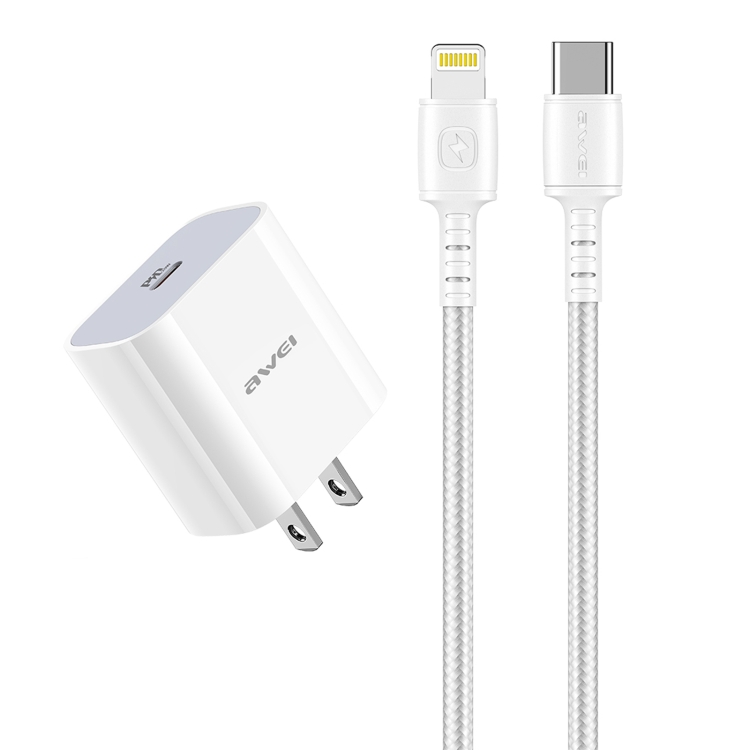
The MCY 12-in-1 Hub’s 85W rating means you should use a charger rated at 90W or higher. The hub consumes approximately 5W for its own operation, leaving 85W for the laptop.
How Much Power Does the Hub Consume?
The hub itself needs power for:
- Controller chip: ~1W (manages data routing)
- Video output chip: ~1-2W (processes DisplayPort signals)
- Ethernet controller: ~0.5W (if connected)
- SD card reader: ~0.5W (when in use)
- USB port power: Variable (depends on connected devices)
Total hub self-consumption: 3-5W. The remaining power passes through to the laptop.
Charger Requirements for Pass-Through
To get full pass-through power, your wall charger must match or exceed the hub’s PD rating:
| Hub PD Rating | Required Charger | Power to Laptop | Best For |
|---|---|---|---|
| 60W | 65W charger | ~55W | MacBook Air |
| 85W | 90-100W charger | ~80-85W | MacBook Pro 14″ |
| 100W | 100W+ charger | ~95W | MacBook Pro 16″ |
Using a charger with lower wattage than the hub’s rating works fine — the laptop simply receives less power. For example, using a 65W charger with an 85W hub delivers approximately 60W to the laptop.
What Happens When Power Is Insufficient?
If the connected devices draw more power than the charger provides, the hub prioritizes laptop charging and reduces power to USB ports. External hard drives may disconnect or fail to spin up.
Symptoms of insufficient power:
- External drives clicking or disconnecting
- Laptop battery slowly draining despite being plugged in
- Hub becoming hot to the touch
- USB devices not recognized
Solution: Use a higher-wattage charger or connect power-hungry USB devices to a separate powered hub.
PD Pass-Through and USB Hub Power Sharing
When using PD pass-through, the hub manages three power priorities:
- Laptop charging (highest priority): The hub ensures the laptop receives as much power as possible
- Hub operation: The hub takes ~5W for its own operation
- USB port power (lowest priority): Remaining power is distributed to connected USB devices
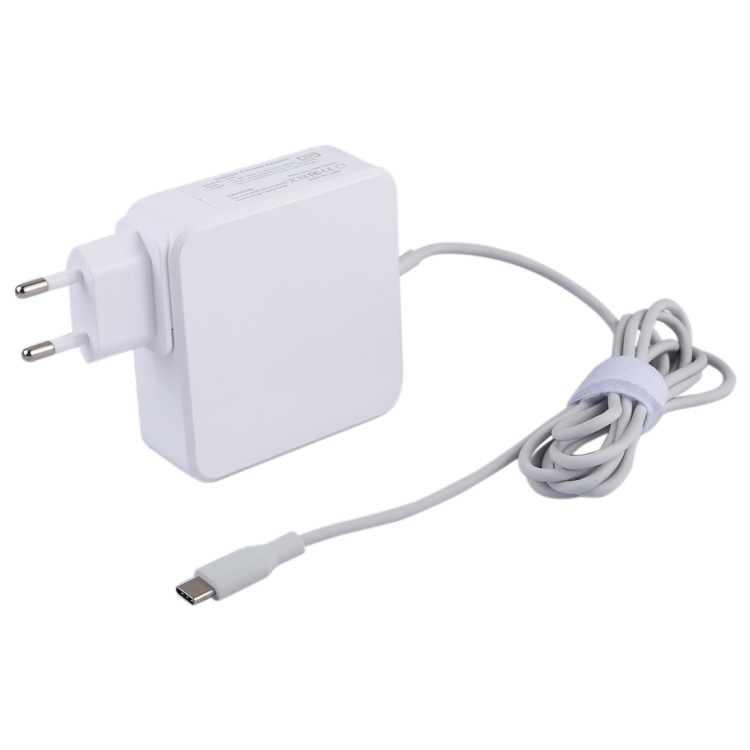
If total demand exceeds supply, USB ports are throttled first, then hub features are reduced, and laptop charging continues at the maximum available rate.
Actual Performance: MCY 12-in-1 Hub
We tested the MCY 12-in-1 with the following setup:
- Wall charger: 100W USB-C PD charger
- Laptop: MacBook Pro 14″ (requires 65W)
- Monitor: 4K HDMI display (connected to hub)
- USB devices: External SSD (USB 3.0), keyboard, mouse
- Ethernet: Gigabit connection active
Results:
- Laptop charging: 85W delivered — full speed charging
- Hub temperature: 42°C — within safe range
- USB devices: All functioned normally
- Video output: 4K 30Hz stable, no flickering
- Hub power consumption: ~5W
Single-Cable Desktop Setup Guide
- Place hub on desk: Position where it’s accessible but not in the way
- Connect peripherals: Plug keyboard, mouse, monitor, Ethernet, and external drives into the hub
- Connect wall charger: Plug your laptop’s USB-C charger into the hub’s PD input port
- Connect to laptop: Plug the hub’s USB-C cable into your laptop
- Done: Everything works — charging, video, data, and networking through one cable
When you need to leave, simply unplug the USB-C cable from your laptop. Everything else stays connected to the hub, ready for when you return.