USB-C Hubs with HDMI: Connecting Dual Monitors from a Single Port

The Single-Port Laptop Problem
Modern laptops sacrifice ports for thinness. A MacBook Pro has only USB-C ports. A Dell XPS has two USB-C ports and one USB-A. For users who need dual monitors, Ethernet, and multiple USB peripherals, this port scarcity is a daily frustration — unless you have a USB-C hub with HDMI output.
At USBToUSB, we carry several USB-C hubs with HDMI, including the MCY 12-In-1 Hub with triple monitor support and the 3-in-1 USB-C to 4K HDMI Hub. Here’s how to choose the right hub for your multi-monitor setup.
How USB-C Hubs Output Video
USB-C hubs output video through DisplayPort Alternate Mode (DP Alt Mode). In this mode, the USB-C port’s high-speed data pins are repurposed to carry DisplayPort video signals. The hub receives the DisplayPort signal and converts it to HDMI for your monitor.
Not all USB-C ports support DP Alt Mode. Before buying a hub, verify that your laptop’s USB-C port supports video output. Ports labeled with a DisplayPort (D) icon or Thunderbolt icon support Alt Mode.
Single vs Dual vs Triple Monitor Support
Single Monitor (One HDMI Port)
The 3-in-1 USB-C to 4K HDMI Hub provides a single HDMI output at 4K 30Hz. This adds one external monitor to your setup, extending or mirroring your laptop screen. Best for users who need just one additional display.
Dual Monitor (Two Video Outputs)
Some hubs offer HDMI + DisplayPort, or two HDMI ports. Each output can drive a separate monitor. The hub’s controller chip manages two independent video streams, giving you a true dual-monitor setup with different content on each screen.
Triple Monitor (MCY 12-In-1 Hub)
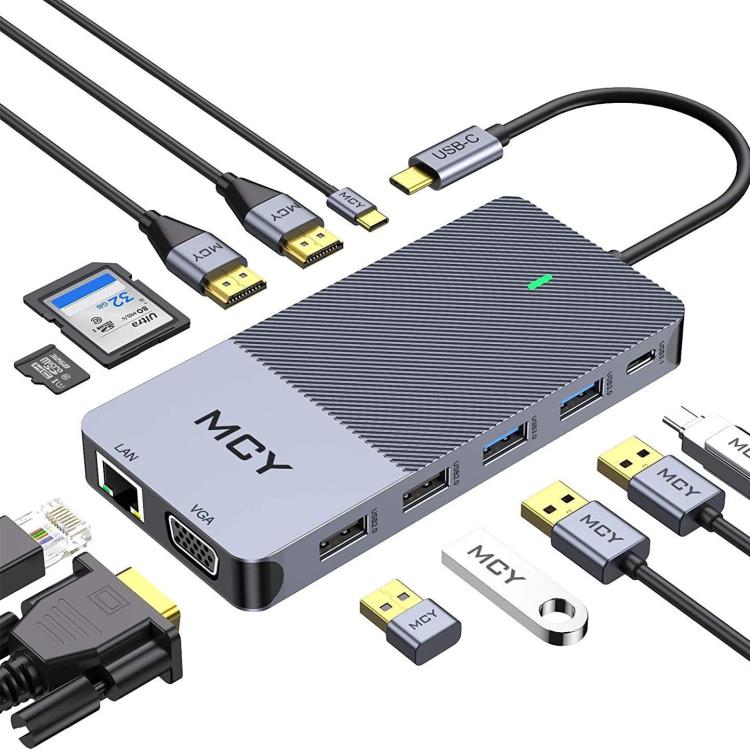
The MCY 12-In-1 USB-C Hub supports triple monitors via HDMI and VGA outputs. This hub can drive up to three external displays simultaneously, making it the ultimate desktop replacement solution. Each monitor can display independent content.
Understanding Resolution and Refresh Rate Limits
USB-C hub video output is limited by the underlying DisplayPort bandwidth:
- DP 1.2 (HBR2): 4K at 30Hz or 1440p at 60Hz — most common in USB-C hubs
- DP 1.4 (HBR3): 4K at 60Hz — found in premium hubs and Thunderbolt docks
- DP 2.0: 8K at 30Hz or 4K at 120Hz — rare in current USB-C hubs
When using multiple monitors, bandwidth is shared. A hub that supports 4K 30Hz on one monitor might only support 1080p 60Hz when driving two monitors simultaneously.
The MCY 12-In-1 Hub: Complete Breakdown
Our most feature-rich hub offers:
- 2× HDMI 4K 30Hz: For dual 4K monitors
- 1× VGA: For legacy monitors and projectors
- 1× USB-C PD 85W: Charge your laptop while using the hub
- 1× Gigabit Ethernet: 1000Mbps wired networking
- 3× USB 3.0: For peripherals and storage
- 1× USB 2.0: For keyboard/mouse (reduced interference)
- SD/TF Card Reader: For photographers
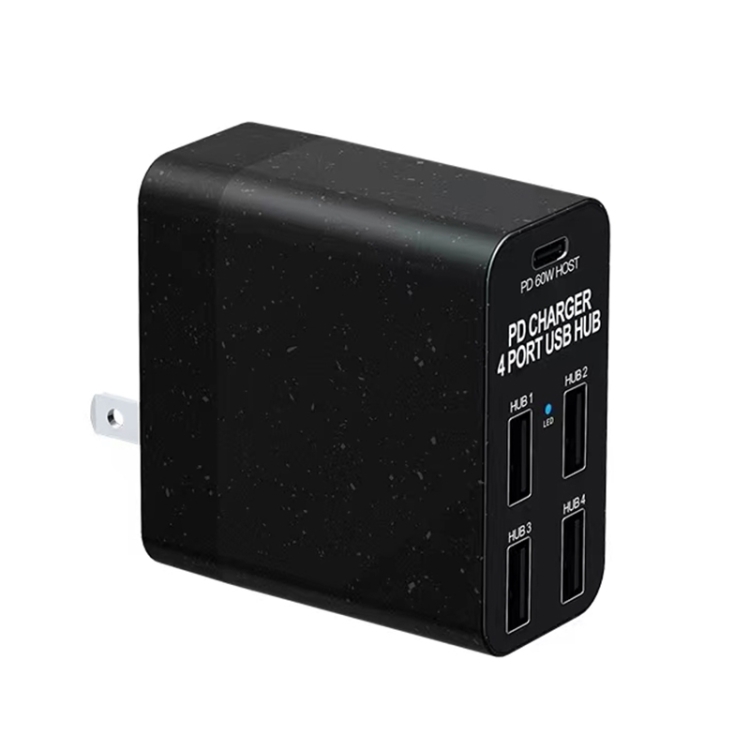
The 85W PD pass-through charges most laptops while the hub is in use, eliminating the need for a separate charger. Power flows: wall charger → hub → laptop, with the hub taking a small amount for its own operation.
Other Hubs for Different Needs
3-in-1 USB-C to HDMI Hub
Compact hub with HDMI + 2× USB 3.0 ports. Best for users who need one monitor and USB peripheral expansion. Smaller and lighter than the 12-in-1, making it ideal for travel.
BYL-2217TU 7-in-1 Hub
Features USB 3.0, USB 2.0, and Type-C ports. Best for users who need USB expansion without video output. Compact design for laptop bags.
BYL-2218TU 8-in-1 Hub
Expands to 8 ports including USB-C. Best for users with many USB peripherals and devices who don’t need video output.
Setting Up Dual Monitors with a USB-C Hub
- Connect the hub: Plug the hub’s USB-C connector into your laptop’s USB-C port (ensure the port supports DP Alt Mode)
- Connect monitors: Connect HDMI cables from the hub to each monitor
- Configure displays: On Windows, right-click desktop → Display Settings → Extend. On Mac, System Settings → Displays → Arrange
- Set resolution: Set each monitor to its native resolution (4K or 1080p depending on the monitor)
- Connect peripherals: Plug keyboard, mouse, and Ethernet into the hub’s ports
- Connect power: Plug your laptop’s USB-C charger into the hub’s PD port for pass-through charging
Common Issues and Solutions
Monitor Shows Black Screen or No Signal
Likely causes: (1) The laptop’s USB-C port doesn’t support DP Alt Mode, (2) The HDMI cable is faulty, (3) The monitor is set to the wrong input. Verify your laptop’s USB-C port supports video output by checking the manufacturer’s specs.
4K Monitor Only Shows 30Hz
This is a bandwidth limitation. Most USB-C hubs support DP 1.2, which caps at 4K 30Hz. For 4K 60Hz, you need a hub with DP 1.4 support or a Thunderbolt dock. Some hubs offer 4K 30Hz on HDMI and 4K 60Hz on USB-C to DisplayPort connections.
Laptop Not Charging Through Hub
Ensure your charger’s wattage matches or exceeds the hub’s PD pass-through rating. The MCY 12-in-1 supports 85W PD — if your charger delivers less, the laptop may not charge properly while the hub is in use.