Best USB Hubs for Gaming Setups: Connect All Your Peripherals

The Gaming Peripheral Problem
Modern gaming setups are peripheral-heavy: gaming keyboard, gaming mouse, headset, controller charger, capture card, streaming camera, microphone, RGB lighting controller, and sometimes a second monitor for Discord or OBS. That’s 8-10 USB devices, and most PCs only have 4-6 USB ports on the back panel.
At USBToUSB, we carry USB hubs designed for high-performance gaming setups. Here’s how to build the perfect gaming USB infrastructure.
Gaming USB Hub Requirements
1. USB 3.0 Minimum
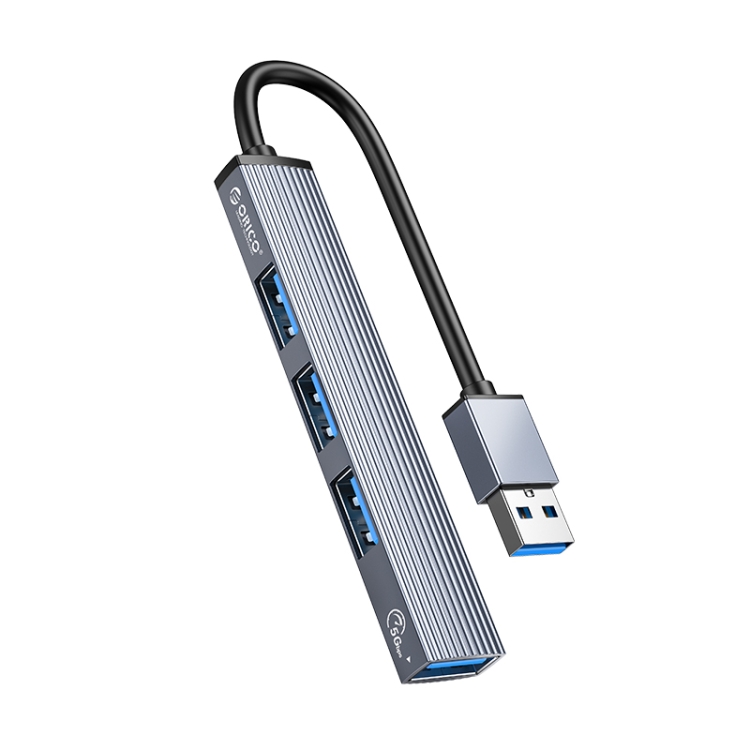
Gaming peripherals need USB 3.0 for several reasons: capture cards require 5+ Gbps bandwidth for uncompressed video capture, external SSDs for game storage need high-speed data, and RGB synchronization software communicates via USB. The A-809 4-Port USB 3.0 Aluminum Hub is our top pick for gaming.
2. Low Latency
Gaming keyboards and mice demand minimal latency. While USB 2.0 is sufficient for these peripherals (they use minimal bandwidth), connecting them through a hub adds a small amount of latency. Quality hubs like the A-809 add less than 1ms — imperceptible even in competitive gaming.
3. Power for Multiple Devices
Gaming peripherals can draw significant power: RGB keyboards (500mA), gaming mice with high polling rates (100-500mA), headset with lighting (500mA), and controller charging (500mA each). Total power draw can exceed 2A — more than a bus-powered hub can provide. For this reason, powered USB hubs or dedicated charging stations recommended for gaming.
4. Durability
Gaming setups see frequent cable plugging and unplugging. The A-809’s aluminum alloy construction withstands daily use better than plastic alternatives. Metal housing also provides better EMI shielding — important when wireless gaming peripherals are nearby.
Gaming Setup Configurations
The Streamer Setup (8+ devices)
Devices: Gaming keyboard, gaming mouse, headset, microphone, capture card, streaming camera, RGB controller, controller charger
Recommended setup:
- 150W 8-Port Charging Station: Powers all USB devices simultaneously
- A-809 Aluminum Hub: For data connection of capture card and SSDs
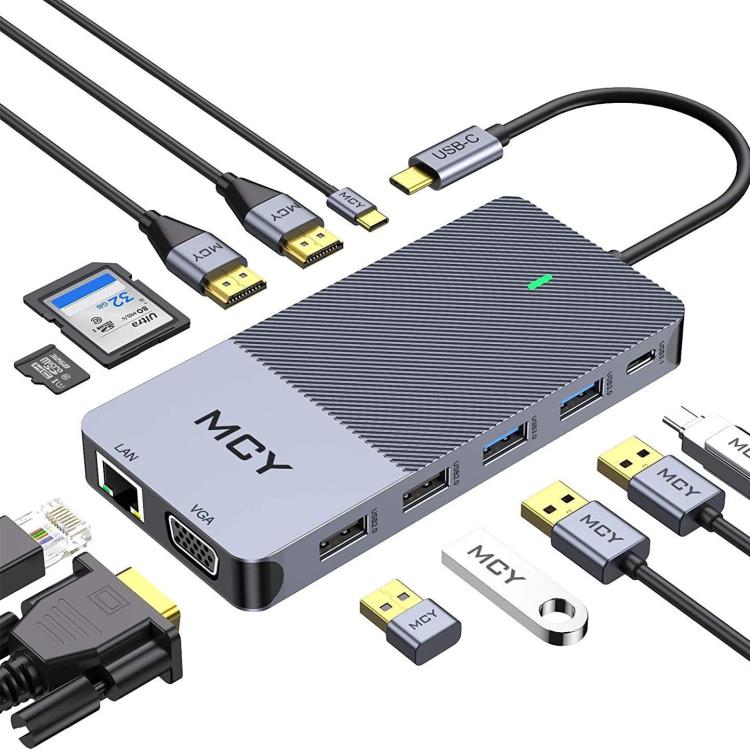
- MCY 12-in-1 Hub: For dual monitor output and SD card reader
The 8-port station handles power distribution while the data hubs manage high-speed connections. This separation of power and data ensures stable performance.
The Console Gaming Setup
Devices: Controller charger, headset, capture card, external storage
Recommended setup:
- A-809 4-Port Hub: Connect capture card and external storage
- Multi USB 2.0 Hub (6-port): For controller charging and headset
Console USB ports are often limited. Using two hubs — one for data (capture card, storage) and one for charging (controllers, headset) — prevents bandwidth conflicts.
The Laptop Gaming Setup
Devices: Gaming keyboard, mouse, headset, external SSD, external monitor
Recommended setup:
- MCY 12-in-1 Hub: HDMI for external monitor, USB 3.0 for SSD, USB ports for keyboard/mouse, PD pass-through for charging
The MCY 12-in-1 is the ultimate single-cable solution for laptop gamers. One USB-C connection provides monitor, peripherals, storage, and charging.
The Sim Racing Setup
Devices: Racing wheel, pedals, shifter, button box, dashboard display, headset
Recommended setup:
- A-809 4-Port Hub: For wheel, pedals, shifter (USB 3.0 for minimal latency)
- BYL-2217TU 7-in-1: For dashboard display, headset, and charging
Sim racing peripherals benefit from USB 3.0’s lower polling latency. Keep racing-critical devices on the A-809’s USB 3.0 ports and secondary devices on the 7-in-1 hub.
Capture Card Considerations
Video capture cards are the most bandwidth-hungry gaming peripherals. A 1080p60 capture card needs approximately 3 Gbps of sustained bandwidth — 60% of USB 3.0’s total capacity. A 4K capture card needs the full 5 Gbps.
For capture cards:
- Connect directly to the PC’s USB 3.0 port for maximum bandwidth
- If using a hub: Ensure the hub has a quality controller chip (like the A-809)
- Avoid USB 2.0: Capture cards will drop frames on USB 2.0
- Don’t share with storage: Don’t connect an external SSD and capture card to the same hub — bandwidth contention causes dropped frames
RGB Lighting and USB
RGB lighting controllers (like Corsair iCUE, Razer Synapse, and Lian Li L-Connect) communicate via USB. Each controller needs its own USB connection. If you have multiple RGB controllers:
- Use a USB 2.0 hub for RGB controllers (they don’t need USB 3.0 speed)
- Keep RGB controllers on a separate hub from gaming peripherals to prevent software conflicts
- Some RGB software can cause USB polling rate interference — test with and without RGB software running
Controller Charging Through USB Hubs
Xbox and PlayStation controllers charge via USB. When charging through a hub:
- USB 2.0 is fine: Controllers only need 500mA for charging
- Bus-powered hub limitations: A bus-powered hub provides 500mA total — one controller at a time
- Powered hub recommended: Use the 50W 6-Port or 150W 8-Port station for simultaneous charging of multiple controllers
Cable Management for Gaming Setups
Gaming setups have more cables than any other desk configuration. Here’s how to manage them:
- Use right-angle adapters: Our USB 3.0 Right Angle Adapter redirects cables to run parallel to your desk, reducing cable clutter
- Use coiled cables for controllers: The 1m Spring Coiled Cable extends when needed and retracts when not in use
- Use short cables for nearby devices: 0.3m USB cables for devices on the same desk surface
- Label all cables: With 8+ USB cables, labeling prevents accidental disconnection of the wrong device
- Route cables under the desk: Use cable trays and clips to keep cables off the desk surface
Gaming Hub Performance Tips
- Dedicate USB 3.0 ports for bandwidth-heavy devices: Capture cards, external SSDs, streaming cameras
- Use USB 2.0 for low-bandwidth devices: Keyboards, mice, headsets, RGB controllers
- Don’t daisy-chain hubs: Each hub adds latency. Connect all hubs directly to the PC
- Update hub drivers: On Windows, ensure USB controller drivers are up to date for best performance
- Disable USB power saving: Windows may power down USB ports to save energy. In Device Manager, disable “Allow the computer to turn off this device to save power” for all USB hubs