Not All USB-C Cables Are Equal: How to Choose Between

You bought a USB-C cable. It charges your phone fine. Then you plug it into your external SSD to move a 48GB folder of 4K footage, and Windows says “6 hours remaining.” You swap in the cable that came with the SSD. Same job: 4 minutes.
Same connector. Same ports. Completely different performance. That’s because not all USB-C cables carry data at the same speed — and most cable makers don’t want you to know that.
The cable that took six hours? USB 2.0. Max throughput: 480 Mbps. The one that finished in four minutes? USB 3.2 Gen 2, running at 10 Gbps. Twenty times faster. Same plug on both ends. No visual indicator on the outside.
The Invisible Bottleneck: When “USB-C” Means Nothing
The USB-C connector is a physical shape. That’s it. It tells you the plug fits the port. It tells you nothing about what runs through it. A USB 2.0 cable and a USB4 cable look identical from the outside. Same reversible plug. Same satisfying click. But internally, they’re wired completely differently.
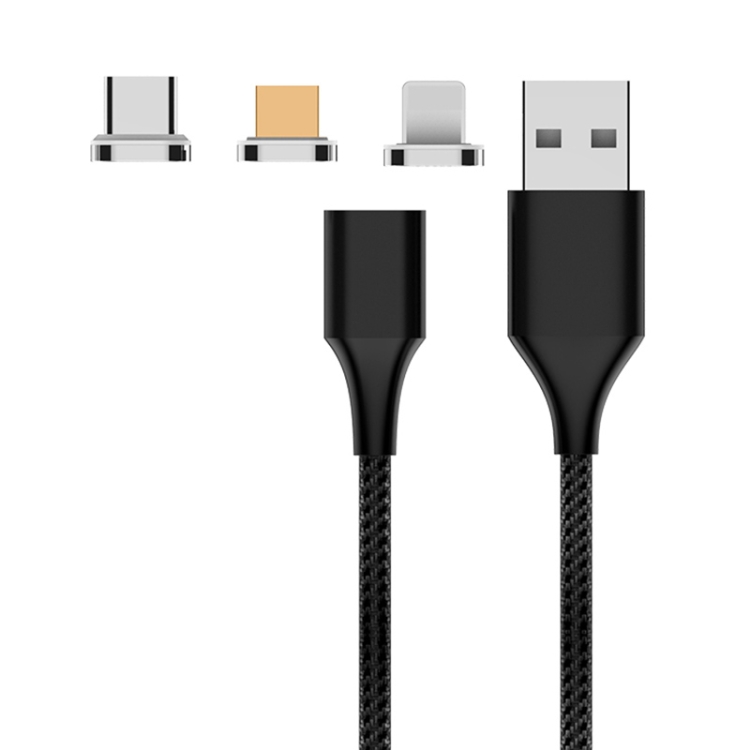
A USB 2.0 cable has four wires: VBUS (power), GND (ground), and one differential pair (D+/D−) for data. That’s enough for 480 Mbps and up to 60W charging. A USB 3.2 Gen 2 cable adds two more differential pairs (TX+/TX− and RX+/RX−) plus a ground shield — eight conductors minimum. A USB4 cable adds two more high-speed pairs for bidirectional tunneling, bringing the internal conductor count to twelve or more.
Here’s what makes this worse: most people buy cables based on two criteria — length and price. Neither tells you the data speed. A $12 cable from Amazon might be USB 2.0. A $15 cable from the same search results might be USB 3.2 Gen 2. The listing probably buries the spec in bullet point seven, if it mentions it at all.
This is why understanding USB-C data cable speeds matters. The cable is the bottleneck. Not your laptop. Not your phone. Not your SSD. The cable.
Decoding the Specs: The Ultimate Speed Cheat Sheet
USB naming conventions are a mess. The USB-IF has renamed the same specifications multiple times, which helps nobody. Here’s the clean version — what each tier actually delivers, what it costs, and what’s inside the cable.
Three things to notice here.
First, the jump from USB 2.0 to USB 3.2 Gen 1 is 10×. From Gen 1 to Gen 2 it’s 2×. The biggest leap you’ll feel in daily use is getting off USB 2.0. If you’re moving files off a camera or SSD, anything at 5 Gbps or above will feel fast. USB 2.0 will not.
Second, the naming is deliberately confusing. “USB 3.2 Gen 1” is the same as “USB 3.0” from 2008. “USB 3.2 Gen 2” is the same as “USB 3.1” from 2013. The USB-IF folded both into the “3.2” branding, which helps marketing departments and nobody else. When you see USB 2.0 vs USB 3.2 on a product page, the gap is 10–20× in data throughput, not a minor revision bump.
Third, higher-speed cables need internal shielding that slower cables skip. USB 3.2 Gen 2 cables wrap each differential pair in its own aluminum foil shield, then bundle those inside a braided shield. This prevents crosstalk — electromagnetic interference between adjacent data pairs that causes bit errors and retransmissions. Without shielding, a 10 Gbps signal degrades to 6 Gbps or drops packets entirely. You don’t get slower speeds. You get corrupted transfers and device disconnects.
Matching Cable to Use Case: Stop Overpaying for Speed You Don’t Use
You don’t need a 40 Gbps cable for every device. In fact, buying one for overnight phone charging is a waste of money. Here’s the breakdown by what you’re actually doing.
Best for Overnight Phone Charging (Bedside / Car)
Get: USB 2.0, 3A rated
Your phone charges at 18–45W. USB 2.0 handles 60W (3A at 20V). No data is moving at 2 AM. A charging vs data sync cable distinction doesn’t matter here — any USB-C cable syncs and charges simultaneously. But for pure charging duty, USB 2.0 is all you need. Save the $10–15. Use it for a better charger instead.
Best for Apple CarPlay / Android Auto
Get: USB 3.2 Gen 1 (5 Gbps), 3A rated
CarPlay works on USB 2.0. But it works better on USB 3.0 and above. The higher bandwidth reduces audio latency, speeds up map tile loading, and eliminates the occasional “accessory not supported” error that cheap USB 2.0 cables trigger in Honda and Toyota head units. A fast data transfer wire at 5 Gbps is the sweet spot — CarPlay won’t use more than a fraction of that, but the signal integrity is better. Don’t overspend on 10 Gbps for the dashboard.
Best for External SSDs and Camera Dumps
Get: USB 3.2 Gen 2 (10 Gbps), 3A minimum
This is where speed matters. A Samsung T7 Shield reads at 1,050 MB/s. USB 3.2 Gen 2 delivers 1,212 MB/s of In practice bandwidth (10 Gbps minus encoding overhead). USB 3.2 Gen 1 caps out at roughly 450 MB/s. The difference between moving a 100GB video project in 90 seconds versus 4 minutes. If you edit off external drives, Gen 2 is non-negotiable.
Watch the cable length. USB 3.2 Gen 2 is spec’d for 1 meter without active components. At 2 meters, you need a cable with a built-in redriver chip to maintain signal integrity. Passive 2-meter Gen 2 cables exist; they drop frames on sustained transfers.
Best for Docking Stations and External Displays
Get: USB4 Gen 3×2 (40 Gbps), 5A with E-Marker
A Thunderbolt 4 dock pushes 40 Gbps of data plus two 4K display signals plus 100W power delivery — all through one cable. That only works with a USB4 or Thunderbolt 4 cable rated for 40 Gbps. Plug in a USB 3.2 Gen 2 cable and the dock will fall back to 10 Gbps. Your displays might still work (DisplayPort Alternate Mode can run on reduced bandwidth), but you’ll lose USB 3.2 ports on the dock and Ethernet may drop to USB 2.0 speeds.
Check our USB-C cable collection for certified options at every speed tier — every cable lists its actual data rate, not just “USB-C.”
FAQ: USB-C Cable Speeds and Data Transfer
Why is my USB-C cable transferring data so slowly?
It’s almost certainly a USB 2.0 cable. Despite the USB-C connector, a USB 2.0 cable maxes out at 480 Mbps — roughly 40–50 MB/s in practice. That’s fast enough for charging and small file syncs, but painfully slow for large transfers. Check the cable’s spec sheet for “USB 3.0,” “USB 3.2 Gen 1” (5 Gbps), or “USB 3.2 Gen 2” (10 Gbps). If it doesn’t list a data speed, assume USB 2.0.
Do I need an E-Marker chip cable for 60W charging?
No. The E-Marker chip is required only for currents above 3A, which means chargers delivering more than 60W (at 20V). A 60W charger outputs 20V/3A — that’s the maximum a standard USB-C cable handles without an E-Marker. You need the E-Marker for 100W (20V/5A) and 240W (48V/5A) chargers. For 60W and below, any USB-C cable with proper 22–24 AWG power conductors will work safely. Where the E-Marker matters for data is different: USB4 and Thunderbolt 4 cables use an E-Marker to communicate their 40 Gbps capability to the host, separate from the power rating.
Can I use a charging cable for data transfer?
Yes, but the speed depends on the cable’s data spec, not its charging rating. A “charge-only” cable with USB 2.0 wiring will transfer data at USB 2.0 speeds (480 Mbps). Some ultra-cheap cables omit data wires entirely — these won’t connect to a computer at all. If a cable transfers files, it’s carrying data. The question is how fast.
How do I tell what speed my USB-C cable supports?
Three ways: (1) Check the packaging or spec sheet for the exact data rate — “5 Gbps,” “10 Gbps,” or “40 Gbps.” (2) On Windows, plug in a USB 3.0+ device, open Device Manager → Universal Serial Bus controllers, and look for “USB 3.0” or “SuperSpeed” in the hub listing. If it says “USB 2.0,” the cable downgraded the connection. (3) On Mac, open System Information → USB, and check the “Speed” field for the connected device. It will report “Up to 5 Gb/s,” “Up to 10 Gb/s,” or “Up to 40 Gb/s” based on the cable’s capability.
Does a longer USB-C cable reduce data speed?
It can. USB 3.2 Gen 2 is rated for 1 meter passive. Beyond that, signal degradation causes retransmissions — the cable doesn’t slow down, it just wastes bandwidth resending corrupted packets. USB4 cables at 40 Gbps require active retimer chips for any length over 0.8 meters. If you need a 2-meter cable at 10 Gbps, buy one with a built-in redriver. Passive cables at that length will drop frames on sustained transfers.
The Bottom Line
Every USB-C cable has a data speed, and most people never check it. If you’re only charging phones overnight, USB 2.0 is fine. If you’re moving files, running CarPlay, or connecting external drives, you need to know the difference between 480 Mbps and 10 Gbps — because that difference turns a 6-hour transfer into 4 minutes.
Check the spec before you buy. Look for “5 Gbps” or “10 Gbps” on the listing. If it doesn’t say, it’s USB 2.0. And if you’re running a Thunderbolt dock or external display, only a 40 Gbps USB4 cable will give you full bandwidth. The connector is the same. The performance is not.
Related searches: USB-C cable speed test, USB 2.0 vs USB 3.2 transfer speed, how to check USB-C cable data rate, E-Marker chip 100W cable, USB4 vs Thunderbolt 4 cable difference, best cable for external SSD, CarPlay USB cable speed, charging vs data sync cable explained