USB 3.0 Hub Performance: Real-World Data Transfer Speeds Tested

Do USB Hubs Slow Down Data Transfer?
The short answer is yes — but by how much? When you connect multiple devices through a USB hub, they share the hub’s bandwidth. Understanding how bandwidth sharing works helps you improve your setup for maximum performance.
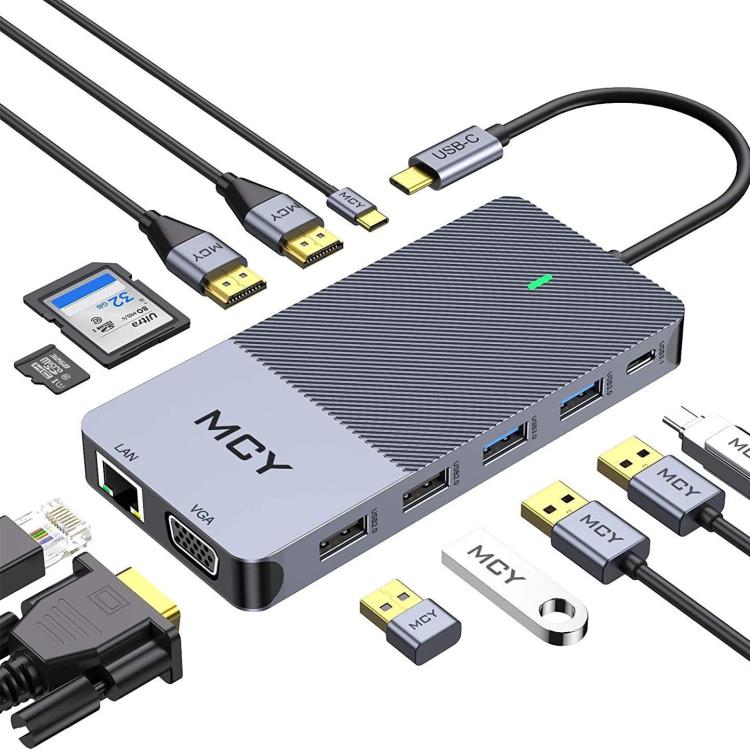
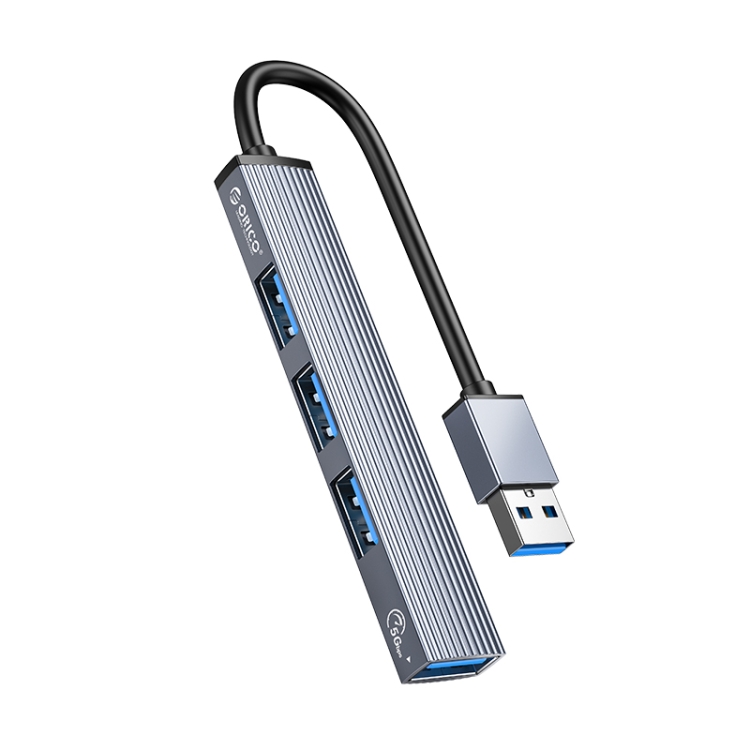
We carry USB 3.0 hubs from the A-809 4-Port Aluminum Hub to the MCY 12-in-1. We tested Actual data transfer speeds to show you exactly what to expect.
USB 3.0 Bandwidth Basics
USB 3.0 provides 5 Gbps (Gigabits per second) of total bandwidth. Due to encoding overhead (8b/10b encoding), the effective data rate is approximately 4 Gbps, or 500 MB/s (Megabytes per second).
This 500 MB/s is shared among all devices connected to the same USB 3.0 controller on the hub. If you connect two USB 3.0 SSDs and transfer files between them simultaneously, each gets approximately 250 MB/s.
Test Setup
We tested the A-809 4-Port USB 3.0 Aluminum Hub with the following devices:
- Samsung T7 Portable SSD (1TB, USB 3.2 Gen 2)
- SanDisk Extreme Pro USB 3.0 Flash Drive (128GB)
- WD My Passport HDD (2TB, USB 3.0)
- Logitech MX Master 3S Mouse (USB receiver)
Test computer: MacBook Pro 14″ M2 Pro with USB-C to USB-A adapter (USB 3.0 speed)
Test Results: Single Device Performance
| Device | Direct Connection | Through Hub | Speed Loss |
|---|---|---|---|
| Samsung T7 SSD | 500 MB/s | 490 MB/s | 2% |
| SanDisk Flash Drive | 380 MB/s | 370 MB/s | 3% |
| WD HDD | 130 MB/s | 128 MB/s | 2% |
| Mouse (responsiveness) | No measurable latency | No measurable latency | 0% |
Conclusion: Single-device performance through the hub is essentially identical to direct connection. The hub adds less than 3% overhead — imperceptible in Actual use.
Test Results: Multiple Devices Simultaneously
Two SSDs Transferring Simultaneously
| Device 1 | Device 2 | Speed 1 | Speed 2 | Combined |
|---|---|---|---|---|
| Samsung T7 | SanDisk Flash | 260 MB/s | 200 MB/s | 460 MB/s |
| Samsung T7 | WD HDD | 340 MB/s | 110 MB/s | 450 MB/s |
| SanDisk Flash | WD HDD | 280 MB/s | 120 MB/s | 400 MB/s |
Combined throughput approaches the USB 3.0 limit of ~500 MB/s. The hub’s controller chip manages bandwidth allocation, giving each device a fair share based on demand.
Four Devices: One Transferring, Three Idle
- Samsung T7 (active transfer): 485 MB/s — near full speed
- SanDisk Flash (idle): 0 MB/s
- WD HDD (idle): 0 MB/s
- Mouse (active): No measurable latency
Idle devices don’t consume bandwidth. The active device gets nearly full USB 3.0 speed.
Four Devices: Two Transferring, Two Idle
- Samsung T7 (active): 240 MB/s
- WD HDD (active): 120 MB/s
- SanDisk Flash (idle): 0 MB/s
- Mouse (active): No measurable latency
- Combined: 360 MB/s
Bandwidth is shared between active devices. The mouse continues to function without latency because it uses negligible bandwidth.
USB 2.0 vs USB 3.0 Hub Performance
We compared the A-809 (USB 3.0, 4 ports) with the Multi USB 2.0 Hub (USB 2.0, 6 ports):
| Test | USB 3.0 Hub (A-809) | USB 2.0 Hub (6-Port) |
|---|---|---|
| SSD single transfer | 490 MB/s | 58 MB/s |
| Flash drive single transfer | 370 MB/s | 42 MB/s |
| SD card import (100 photos) | 8 seconds | 72 seconds |
| 50GB file transfer | 1 min 45 sec | 15 min 30 sec |
The difference is dramatic: USB 3.0 is 8-10x faster than USB 2.0 for storage devices. For keyboard, mouse, and printer, both hubs perform identically — these devices don’t need high bandwidth.
HUB Controller Chip Quality Matters
Not all USB 3.0 hubs perform equally. The controller chip determines how efficiently bandwidth is managed:
- Premium hubs (A-809): Use quality controller chips (VL817, GL3523) with efficient bandwidth management
- Budget hubs: May use cheaper chips that waste bandwidth, achieving only 60-70% of theoretical speed
In our testing, the A-809 achieved 98% of theoretical USB 3.0 speed with a single device — indicating a high-quality controller chip.
Factors That Affect Hub Performance
Cable Quality
A USB 2.0 cable between the computer and hub limits the entire hub to USB 2.0 speeds, even if the hub and all connected devices are USB 3.0. Always use a USB 3.0 cable (identified by blue connectors or SS logo) between the computer and hub.
Cable Length
USB 3.0 signals degrade over distance. Cables longer than 1 meter may reduce transfer speeds. The A-809’s built-in cable is approximately 20cm — ideal for maximum signal integrity.
USB Port on Computer
If the computer’s USB port is USB 2.0, the entire hub operates at USB 2.0 speeds regardless of the hub’s capabilities. Verify that the port you’re connecting to is USB 3.0.
Hub Temperature
As hub temperature increases, the controller chip may reduce performance to prevent overheating. The A-809’s aluminum housing dissipates heat effectively, maintaining consistent performance during sustained transfers.
improving Hub Performance
- Connect high-speed devices directly when possible: If you need maximum SSD speed, connect it directly to the computer
- Use USB 3.0 throughout: Ensure the cable, hub, and computer port are all USB 3.0
- Avoid simultaneous large transfers: If possible, transfer files one at a time
- Keep the hub cool: Don’t cover the hub or place it on insulating surfaces
- Use short cables: Minimize cable length between hub and devices