How to Choose a USB Hub for Your Specific Laptop Model

One Hub Doesn’t Fit All Laptops
Buying a USB hub seems simple — just get one with enough ports, right? Not quite. Your laptop’s USB-C port capabilities, power requirements, and operating system all affect which hub will work properly. A hub that works perfectly with a MacBook Pro might not work at all with a budget Windows laptop.
At USBToUSB, we carry hubs for every laptop type. Here’s how to match the right hub to your specific laptop model.
Step 1: Identify Your Laptop’s USB-C Port Type
Not all USB-C ports are created equal. Check your laptop’s specs for these capabilities:
USB-C (Data + Power)
Basic USB-C ports support data transfer and power delivery but NOT video output. If your laptop’s port is labeled just “USB-C” without any icons, it likely supports data and charging only.
Compatible hubs: BYL-2217TU 7-in-1 (USB ports only, no HDMI), A-809 4-Port Hub
USB-C with DisplayPort Alt Mode
Ports labeled with a “DP” or monitor icon support video output via USB-C. These ports can drive external monitors through a compatible hub.
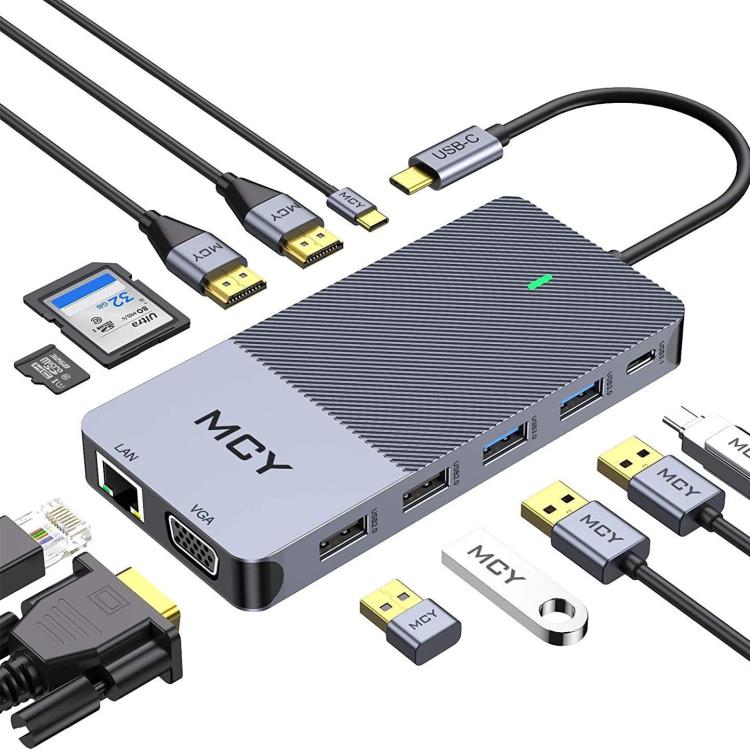
Compatible hubs: 3-in-1 USB-C to HDMI Hub, MCY 12-in-1 Hub (triple monitor)
Thunderbolt 3/4 Ports
Ports with a lightning bolt icon support Thunderbolt — the fastest and most capable USB-C standard. Thunderbolt ports work with all USB-C hubs and support the highest video and data bandwidth.
Compatible hubs: All hubs in our range, including MCY 12-in-1 for maximum performance.
Step 2: Check Power Delivery Support
If you want to charge your laptop through the hub (PD pass-through), verify:
- Your laptop supports USB-C charging: Not all laptops with USB-C ports can charge via USB-C. Check your laptop’s specs for “USB-C PD” or “USB Power Delivery.”
- Your charger’s wattage: MacBook Pro 14″ needs 65W+, MacBook Pro 16″ needs 100W+. Ensure the hub’s PD pass-through rating matches or exceeds your charger.
- Hub PD rating: The MCY 12-in-1 supports 85W PD. Ensure this is sufficient for your laptop.
Step 3: Match the Hub to Your Laptop Model
MacBook Pro / Air (USB-C)
All MacBook models from 2016+ have Thunderbolt/USB-C ports with full DP Alt Mode support. Any USB-C hub works, but for best results:
- MacBook Air: 3-in-1 USB-C to HDMI Hub (light use) or BYL-2217TU 7-in-1 (full setup)
- MacBook Pro 14″: MCY 12-in-1 Hub (85W PD matches MBP 14″ charging needs)
- MacBook Pro 16″: MCY 12-in-1 Hub (85W PD sufficient for charging while in use)
Dell XPS / Latitude
Dell XPS 13/15/17 have Thunderbolt 4 ports. Dell Latitude varies by model — some have basic USB-C, others have Thunderbolt.
- XPS with Thunderbolt: Any USB-C hub. MCY 12-in-1 for full desktop replacement.
- Latitude with basic USB-C: BYL-2217TU 7-in-1 (USB expansion without video dependency)
HP Spectre / Envy / Pavilion
HP Spectre has Thunderbolt 4. HP Envy and Pavilion models vary — check for the DP icon next to the USB-C port.
- With DP Alt Mode: 3-in-1 USB-C to HDMI Hub or MCY 12-in-1
- Without DP Alt Mode: BYL-2217TU 7-in-1 (USB only)
Lenovo ThinkPad / IdeaPad
ThinkPad T/X series typically have Thunderbolt 4. IdeaPad varies — check specs.
- ThinkPad with Thunderbolt: MCY 12-in-1 for full desktop setup
- IdeaPad with basic USB-C: BYL-2217TU 7-in-1
ASUS ZenBook / VivoBook
Most ASUS ZenBooks have Thunderbolt 4 or USB-C with DP Alt Mode. VivoBooks vary.
- ZenBook: MCY 12-in-1 or 3-in-1 USB-C to HDMI Hub
- VivoBook: BYL-2217TU 7-in-1
Microsoft Surface Laptop
Surface Laptop 4+ has USB-C with DP Alt Mode. Surface Laptop 3 has USB-C but may not support all hub features.
- Surface Laptop 4+: 3-in-1 USB-C to HDMI Hub
- Surface Laptop 3: BYL-2217TU 7-in-1 (verify DP support)
Step 4: Operating System Compatibility
macOS
All our hubs are macOS compatible. USB hubs use standard USB class drivers built into macOS. No additional software needed.
Windows 10/11
Full compatibility. Windows includes native USB hub drivers. Plug and play — no installation required.
Linux
Most distributions include USB hub drivers. Video output via USB-C may require additional configuration depending on your distribution and display server (X11 or Wayland).
ChromeOS
Chromebooks with USB-C ports support USB hubs. Video output depends on the specific Chromebook model.
Step 5: Cable and Connection Quality
Even the right hub won’t work properly with a bad cable. Ensure:
- USB-C cable is USB 3.0+ rated: USB 2.0 cables limit hub performance to 480 Mbps
- Cable is fully inserted: USB-C cables are reversible but must fully seated
- No damage: Bent or damaged cables cause intermittent connections
- Hub’s built-in cable is intact: Our hubs have integrated cables — avoid pulling or bending them
Troubleshooting Common Issues
Monitor Not Detected
Check: (1) Laptop’s USB-C port supports DP Alt Mode, (2) HDMI cable is connected and monitor is on the right input, (3) Hub is compatible with your laptop’s video output standard.
USB Devices Disconnecting
Check: (1) Total power draw of connected devices doesn’t exceed the USB port’s capacity, (2) USB cable is firmly connected, (3) Hub isn’t overheating.
Slow Data Transfer
Check: (1) You’re using USB 3.0 ports for USB 3.0 devices, (2) The hub isn’t sharing bandwidth among too many active devices, (3) The connecting cable supports USB 3.0 speeds.