USB Cable Color Coding: What Do the Colors Mean?

USB Connector Colors
USB connectors often have different colors inside. These colors indicate the USB version and capabilities. Understanding color coding helps you identify cable types quickly.
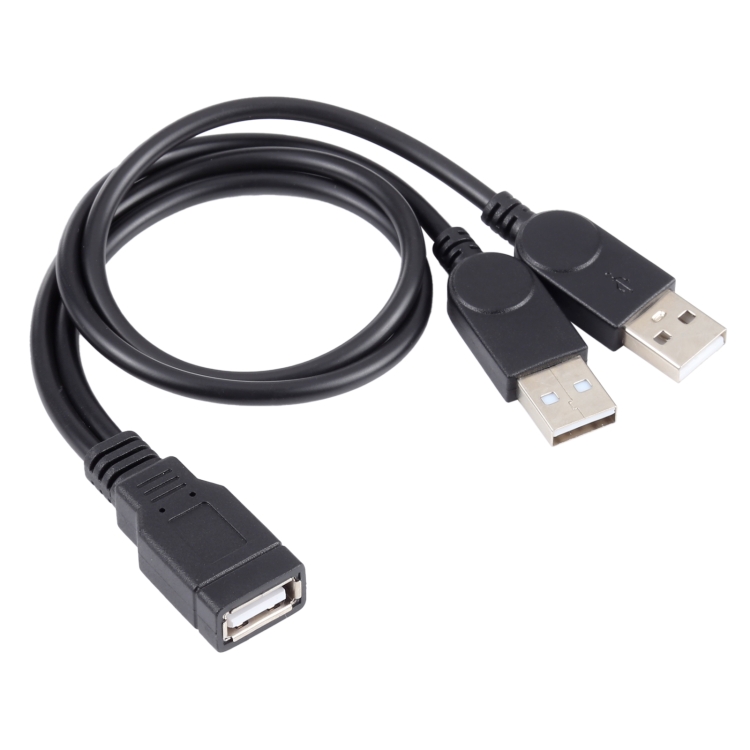
Standard USB Color Codes
- White: USB 1.0/1.1 – Basic speed (12Mbps)
- Black: USB 2.0 – High speed (480Mbps)
- Blue: USB 3.0 – SuperSpeed (5Gbps)
- Teal: USB 3.1 – SuperSpeed+ (10Gbps)
- Red: USB 3.2 – High-speed charging or sleep-and-charge
USB-C Color Variations
USB-C connectors may have different colors:
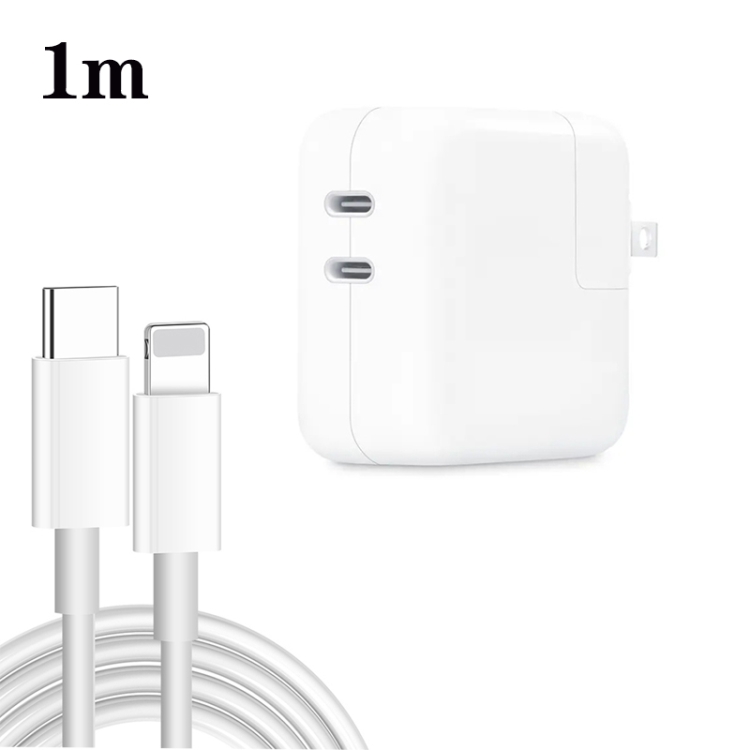
- Often no standard color coding
- Check specifications for speed
- Color may indicate branding
Charging Indicators
- Red ports: Often indicate high-power charging
- Yellow ports: Sleep-and-charge (power when PC off)
- Orange ports: Similar to yellow, always-on power
Limitations of Color Coding
- Not all manufacturers follow standards
- Some use colors for branding
- Always verify specifications
- Color coding not universal
Why Color Coding Matters
- Quick identification of USB version
- Know speed capabilities at a glance
- Match cables to port types
Key Considerations
For choosing USB cables and accessories, keep these factors in mind:
- Quality: Invest in certified cables for safety and performance
- Compatibility: Ensure the cable supports your device’s requirements
- Length: Choose appropriate length for your use case
- Speed: Consider data transfer speeds for your needs
- Power: Check power delivery capabilities for fast charging
Best Practices
Follow these tips to get the most out of your USB cables:
- Avoid bending cables at sharp angles
- Store cables properly when not in use
- Use cable organizers to prevent tangling
- Replace damaged cables immediately
- Choose reputable brands for reliability
Common Mistakes to Avoid
Watch out for these common USB cable mistakes:
- Buying cheap, uncertified cables
- Ignoring cable specifications
- Using damaged cables
- Overloading cables with high-power devices
- Mixing up cable types and speeds
Future-Proofing Your Setup
Prepare for future technology with these tips:
- Choose USB-C cables with USB 3.2 or USB4 support
- Invest in cables with Power Delivery capability
- Consider Thunderbolt 3/4 compatible cables
- Look for cables with higher wattage ratings
- Buy from reputable manufacturers with warranties