USB-C to DisplayPort Cable 144Hz: Complete Gaming Monitor Guide

For gamers and professionals seeking smooth, tear-free visuals, a USB-C to DisplayPort cable 144Hz is essential. This guide covers what actually matters about achieving high refresh rates with USB-C connectivity.
What Does 144Hz Mean?
A 144Hz refresh rate means your monitor updates 144 times per second, delivering:
- Smoother Motion: Fluid gameplay with reduced blur
- Lower Latency: Faster response to your inputs
- Competitive Advantage: See enemies sooner in busy games
- Eye Comfort: Reduced strain during extended sessions
Requirements for USB-C to DisplayPort 144Hz
To achieve 144Hz via USB-C to DisplayPort cable, you need:
Hardware Requirements
- USB-C Port: Must support DisplayPort Alt Mode
- Cable: USB-C to DisplayPort cable rated for your resolution
- Monitor: DisplayPort input with 144Hz support
- GPU: Graphics card capable of driving 144Hz at your resolution
Resolution Considerations
- 1080p @ 144Hz: USB-C to DP 1.2 or higher
- 1440p @ 144Hz: USB-C to DP 1.4 recommended
- 4K @ 144Hz: USB-C to DP 1.4 with DSC
Choosing the Right USB-C to DisplayPort Cable
When selecting a USB-C to DisplayPort cable 144Hz capable:
Cable Specifications
- DisplayPort 1.4: Supports 4K@144Hz with DSC or 1440p@240Hz
- DisplayPort 1.2: Supports 1080p@144Hz or 1440p@75Hz
- Bandwidth: Higher bandwidth for higher resolutions
- Build Quality: Shielding and connector durability
Length Matters
- Up to 6ft (2m): Passive cables work well for 144Hz
- 6ft – 10ft: Quality passive cables may support 1080p@144Hz
- Over 10ft: Active cables recommended for maintaining signal
Setup Guide for 144Hz
Follow these steps to enable 144Hz with your USB-C to DisplayPort cable:
Step 1: Physical Connection
- Connect USB-C end to your laptop/PC
- Connect DisplayPort end to your monitor
- Ensure both connections are secure
Step 2: Monitor Settings
- Access your monitor’s OSD (On-Screen Display)
- handle to Display Settings
- Select DisplayPort input
- Set refresh rate to 144Hz
Step 3: OS Configuration
Windows:
- Right-click desktop → Display Settings
- Scroll to Advanced Display Settings
- Select 144Hz from refresh rate dropdown
macOS:
- System Preferences → Displays
- Hold Option key while clicking Scaled
- Select refresh rate from dropdown
Troubleshooting 144Hz Issues
If you can’t achieve 144Hz with your USB-C to DisplayPort cable:
Common Problems and Solutions
- Limited to 60Hz: Check cable DP version compatibility
- No Signal: Verify USB-C port supports DisplayPort Alt Mode
- Flickering: Try a higher quality or shorter cable
- Resolution Issues: Update GPU drivers and monitor firmware
Premium USB-C to DisplayPort Cables at USBtoUSB
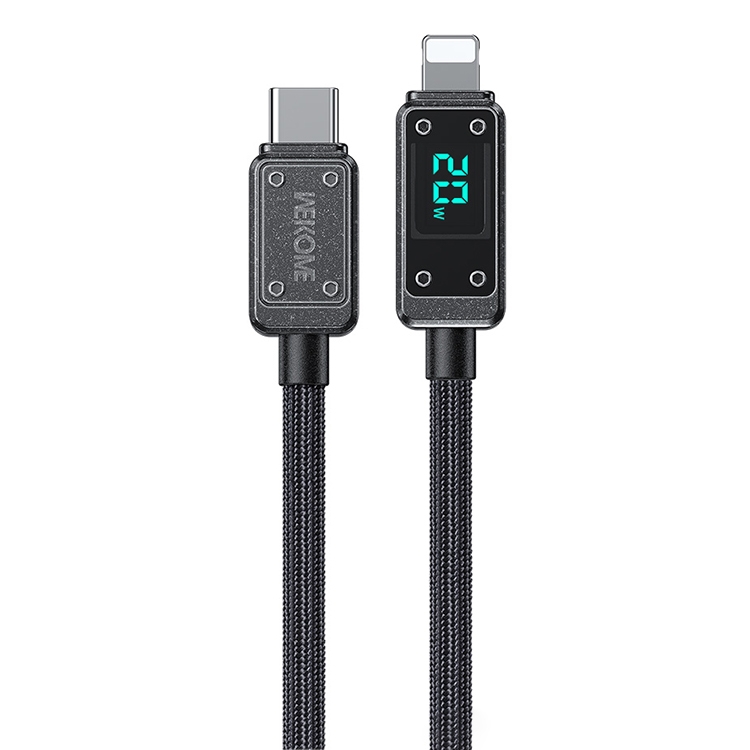
At USBtoUSB, we offer high-performance cables for 144Hz gaming:
- DisplayPort 1.4 Certified: Ready for 4K@144Hz
- 4K@60Hz Support: Versatile for different setups
- Gold-Plated Connectors: Corrosion resistance
- Nylon Braided: Enhanced durability
- 18-Month Warranty: Peace of mind guarantee
Related Searches
- USB-C to DisplayPort 144Hz 4K
- best USB-C to DisplayPort cable for gaming
- DisplayPort 1.4 vs 1.2 for 144Hz
- USB-C monitor 144Hz setup
- laptop to monitor 144Hz USB-C
Ready for smooth, tear-free gaming? Browse our selection of USB-C to DisplayPort cables 144Hz compatible and elevate your gaming experience. Shop now at USBtoUSB!
Complete Your Setup
improve your gaming and productivity setup:
- High-speed data with USB4 cable 40gbps 240w
- For keyboards, try coiled USB-C cable for keyboard
- Fast charging with 15ft USB-C cable for fast charging
- External storage? Use USB-C cable for external hard drive