USB 2.0 vs USB 3.0 vs USB 3.2 Cables:

The USB Speed Confusion
USB cable speed ratings are a mess of confusing names and overlapping standards. USB 3.0, USB 3.1 Gen 1, USB 3.2 Gen 1 — they’re all the same thing. Meanwhile, USB 2.0 cables look identical to USB 3.0 cables but are 20 times slower. Knowing about these differences matters for choosing the right cable for your needs.
At USBToUSB, we carry USB 2.0, USB 3.0, and USB-C cables with various speed ratings. Here’s the definitive guide to USB cable speeds.
USB Speed Standards Explained
| Name | Marketing Names | Max Speed | Connector |
|---|---|---|---|
| USB 2.0 | Hi-Speed USB | 480 Mbps | USB-A, USB-C, Micro-USB |
| USB 3.0 | USB 3.1 Gen 1, USB 3.2 Gen 1 | 5 Gbps | USB-A, USB-C |
| USB 3.1 | USB 3.1 Gen 2, USB 3.2 Gen 2 | 10 Gbps | USB-C |
| USB 3.2 2×2 | USB 3.2 Gen 2×2 | 20 Gbps | USB-C |
What These Speeds Mean in Practice
USB 2.0: 480 Mbps (60 MB/s actual)
USB 2.0 is fine for charging phones, connecting keyboards and mice, and transferring small files. But for moving large files — 4K video, photo libraries, or system backups — USB 2.0 is painfully slow. A 50GB file transfer takes about 15 minutes on USB 2.0.
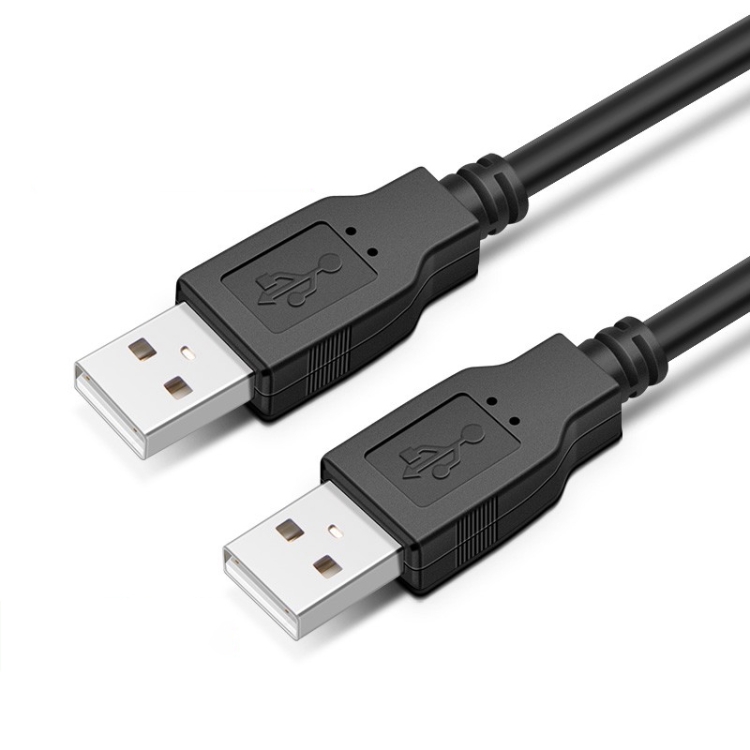
Our USB 2.0 AM to AM Extension Cable is perfect for extending USB 2.0 peripherals like keyboards, mice, and printers. Available in 1.5m and 3m lengths.
USB 3.0: 5 Gbps (500 MB/s actual)
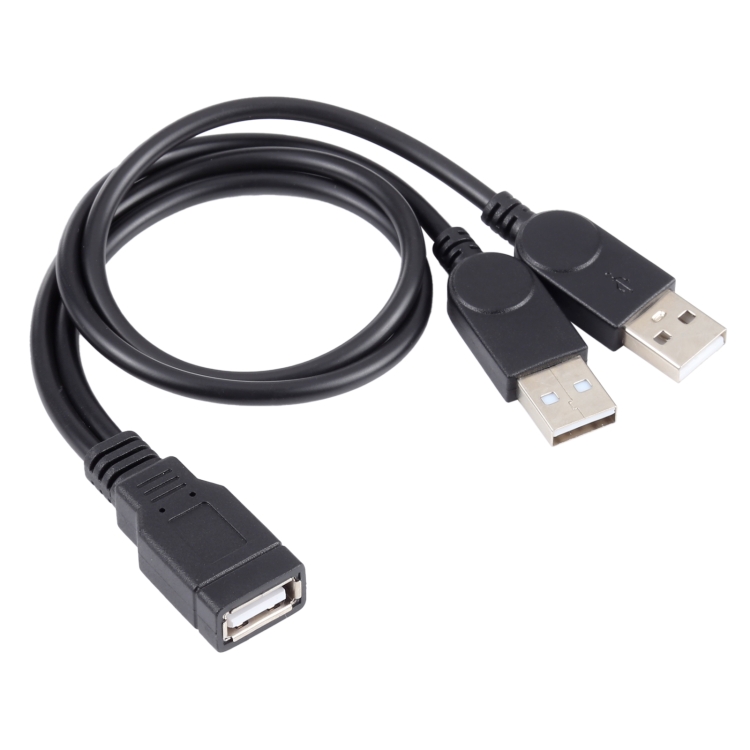
USB 3.0 is 10x faster than USB 2.0 and is the minimum recommended for external hard drives, SSDs, and large file transfers. That same 50GB file takes about 90 seconds on USB 3.0. The USB 3.0 Male to Male Double End Cable supports full 5 Gbps speeds.
USB 3.1: 10 Gbps (1 GB/s actual)
USB 3.1 doubles USB 3.0’s speed and requires USB-C connectors. This is the minimum for 4K video output via USB-C Alt Mode and for NVMe SSD enclosures. A 50GB file transfers in about 50 seconds.
USB 3.2 2×2: 20 Gbps (2 GB/s actual)
Found on high-end motherboards and Thunderbolt 4 devices. Overkill for most users but ideal for professional video editing rigs and large-scale data backup systems.
How to Identify USB 2.0 vs USB 3.0 Cables
USB 3.0 cables and ports are typically blue inside (the plastic tongue is blue). USB 2.0 ports are usually black or white. However, this color coding isn’t mandatory — some manufacturers use red, teal, or no color at all.
More reliable indicators:
- 9 pins vs 4 pins: USB 3.0 has 9 pins (4 USB 2.0 pins + 5 additional high-speed pins); USB 2.0 has 4 pins
- “SS” logo: USB 3.0 ports often have “SS” (SuperSpeed) next to them
- Cable thickness: USB 3.0 cables are typically thicker due to additional shielding and wires
- Packaging: Always check the speed rating on the packaging — don’t rely on color alone
Can You Use a USB 2.0 Cable with a USB 3.0 Device?
Yes — USB is backward compatible. A USB 3.0 device connected with a USB 2.0 cable will work, but only at USB 2.0 speeds (480 Mbps). This is the most common reason for slow data transfer: users plug a USB 3.0 external drive with a USB 2.0 cable and wonder why it’s slow.
Similarly, a USB 3.0 cable in a USB 2.0 port will operate at USB 2.0 speeds. The cable and port must both support the higher speed to achieve it.
USB-C: Not All USB-C Cables Are Equal
USB-C is a connector shape, not a speed standard. A USB-C cable might be USB 2.0 (480 Mbps), USB 3.0 (5 Gbps), or USB 3.1 (10 Gbps). The only way to know is to check the cable’s specification — you cannot determine speed from the USB-C connector alone.
This is particularly important for USB-C to USB-C cables that come with chargers. Many charger-included cables are USB 2.0 speed, which is fine for charging but terrible for data transfer.
Cable Length and Speed Degradation
USB cable length affects speed and reliability:
- USB 2.0: Max 5m without signal degradation
- USB 3.0: Max 1-3m without active amplification
- USB 3.1+: Max 1m for passive cables
For longer runs, use an active USB extension cable or a USB-over-Cat5/6 extender. Our USB 2.0 Extension Cables in 1.5m and 3m lengths stay within USB 2.0’s 5m limit for reliable performance.
Which Cable Should You Buy?
- Charging only: USB 2.0 cable (cheapest, sufficient for power)
- External HDD/SSD: USB 3.0 minimum (5 Gbps)
- NVMe SSD enclosure: USB 3.1 or USB 3.2 (10-20 Gbps)
- 4K video output: USB 3.1 via USB-C Alt Mode
- Keyboard/mouse/printer: USB 2.0 extension cable (1.5m or 3m)