Magnetic USB-C Adapters: Protect Your Laptop Port from Damage

The USB-C Port Damage Epidemic
USB-C ports are rated for 10,000 insertion cycles, but in Actual use, they often fail much sooner. The cause isn’t the plugging and unplugging — it’s the lateral stress from cables being bumped, yanked, or bent. A USB cable sticking straight out of a laptop is a lever waiting to damage the port.
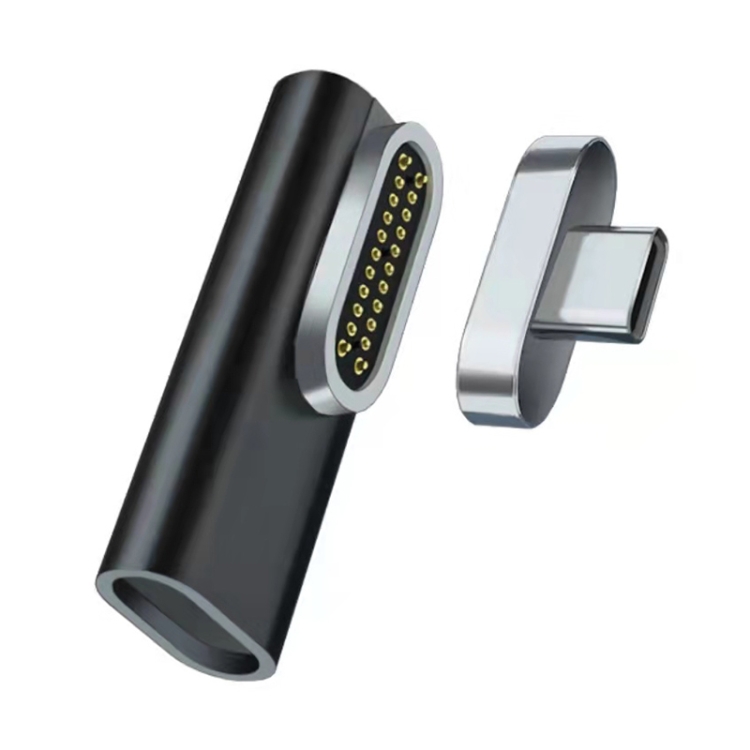
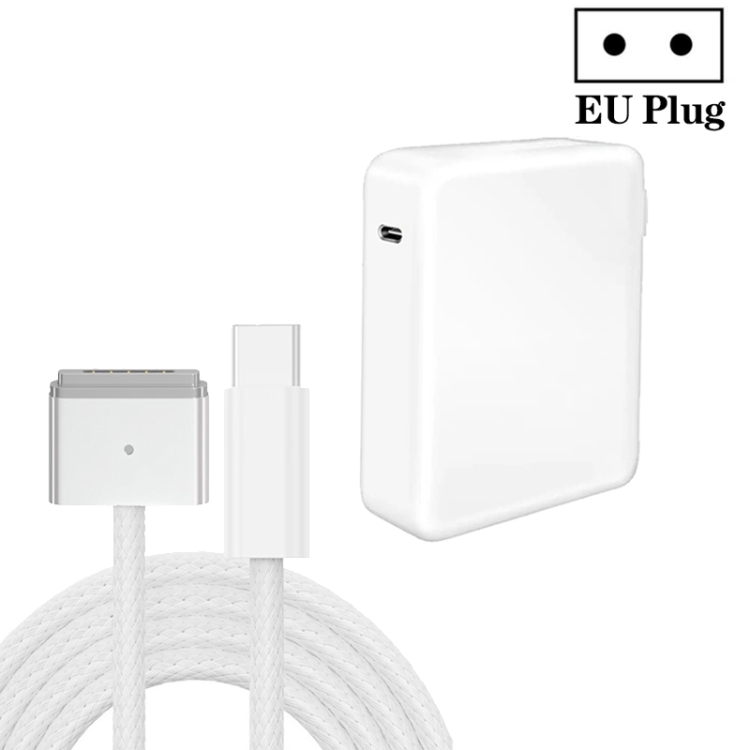
Magnetic USB-C adapters solve this problem the same way Apple’s MagSafe did — by adding a magnetic breakaway connector that disconnects under stress. At USBToUSB, we carry the 100W USB-C Female to 20 Pin Magnetic USB-C Male Elbow Adapter. Here’s why every USB-C laptop owner should consider one.
How Magnetic USB-C Adapters Work
A magnetic USB-C adapter consists of two parts:
- The dongle: A small USB-C male connector that stays inserted in your laptop’s USB-C port. It contains a magnet and spring-loaded pins.
- The cable end: A USB-C female receptacle that attaches magnetically to the dongle. Your charging cable plugs into this end.
When the cable is pulled (someone trips over it, you move your laptop), the magnetic connection breaks — the dongle stays in the port, and the cable end detaches. Your laptop stays put, and the USB-C port is undamaged.
The 100W Magnetic Elbow Adapter
Our magnetic USB-C adapter features:
- 100W power delivery: Supports full USB-C PD 3.0 at 20V/5A — charges MacBook Pro 16″ and other power-hungry laptops
- 20-pin design: Full USB-C pin mapping for power and data
- 90-degree elbow: Cable exits at a right angle, reducing strain on the port and saving space
- Strong magnet: Holds firmly during normal use, releases cleanly when pulled
- Durable construction: Aluminum housing with gold-plated contacts
Why Port Damage Happens
Lateral Force
The most common cause of USB-C port failure is sideways force on the connector. A cable sticking out from the side of a laptop gets pushed when the laptop is in a bag, bumped on a desk, or moved while charging. The thin USB-C connector is only 8.4mm wide — even a small lateral force can bend the internal pins.
Dust and Debris
Dust and pocket lint accumulate in USB-C ports over time. When a connector is inserted, the debris gets compressed against the pins, causing poor connections or short circuits. A magnetic adapter that stays in the port prevents debris from entering.
Wear from Frequent Plugging
While USB-C is rated for 10,000 cycles, the internal spring contacts weaken over time. Frequent plugging and unplugging — common for users who charge and disconnect multiple times daily — accelerates wear. A magnetic adapter reduces insertions to near zero, as the dongle stays in the port.
Cable Weight Stress
Heavy or stiff USB-C cables can stress the port simply from their weight. A thick 100W charging cable hanging from the side of a laptop applies constant torque to the port. The right-angle design of our adapter redirects this force parallel to the laptop body.
Benefits Beyond Port Protection
Quick Connection
Magnetic adapters snap into place with a satisfying click. No more fumbling to insert the USB-C connector correctly — even in the dark. The magnet guides the cable end to the correct position automatically.
Reduced Wear on Cable Connectors
Since you’re not repeatedly inserting and removing the cable from the laptop port, both the cable connector and the port experience less wear. Your cables last longer, and your ports stay in better condition.
Cable Management
The 90-degree elbow design routes the cable along the laptop body, reducing the cable’s footprint. This is particularly useful on cramped desks or when using a laptop on your lap.
Dust Protection
With the dongle inserted in the port at all times, dust and debris cannot enter. When you need to use the port for data transfer or another purpose, simply remove the dongle — the port is clean and ready.
Limitations to Consider
Data Transfer Speed
While our adapter supports data transfer, the magnetic connection may introduce slight signal degradation. For most users, this is unnoticeable. However, for USB 3.1 (10 Gbps) or Thunderbolt applications, a direct USB-C connection recommended for maximum signal integrity.
Not for Video Output
USB-C Alt Mode video signals (DisplayPort, HDMI) require precise signal timing that magnetic connections may disrupt. If you need to connect an external monitor via USB-C, use a direct connection without the magnetic adapter.
Physical Profile
The dongle adds approximately 15mm to the port’s depth. On laptops with very tight port spacing (like some ultrabooks), the dongle may block adjacent ports. Check your laptop’s port layout before purchasing.
Magnet Strength
The magnet must strong enough to hold during normal use but weak enough to break away safely. Our adapter is calibrated for this balance, but very heavy cables (like some 100W braided cables) may pull the adapter free if the cable dangles freely.
Who Should Use Magnetic USB-C Adapters
- MacBook users: Apple removed MagSafe from 2016-2020 MacBooks — magnetic adapters restore the breakaway safety feature
- Frequent travelers: Hotel desks, airport lounges, and coffee shops are high-risk environments for cable bumps
- Students: Backpacks and crowded desks mean frequent cable incidents
- Parents: Kids and pets are the #1 cause of laptop cable accidents
- Anyone with expensive laptops: Replacing a USB-C port on a MacBook Pro costs $200-$500; a $15 adapter prevents the damage
Installation and Usage
- Insert the dongle: Plug the USB-C male end into your laptop’s USB-C port. It should seat fully with a firm click.
- Connect the cable end: Bring your charging cable’s USB-C connector near the dongle. The magnet will pull it into alignment.
- Verify connection: Check that the LED indicator (if present) shows charging status.
- To disconnect: Simply pull the cable — the magnetic connection separates, leaving the dongle in the port.
- To remove the dongle: Grip the dongle firmly and pull straight out. Do not twist or bend.