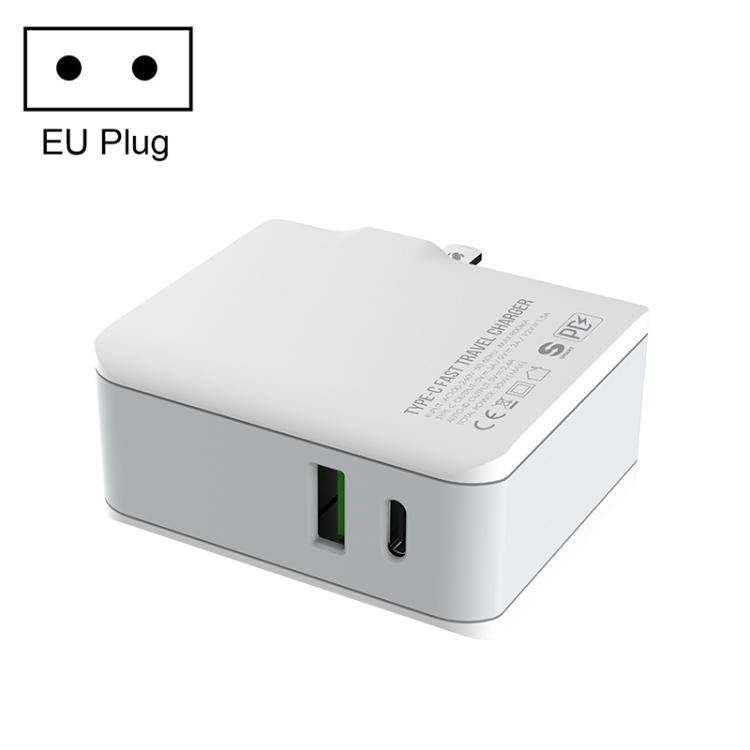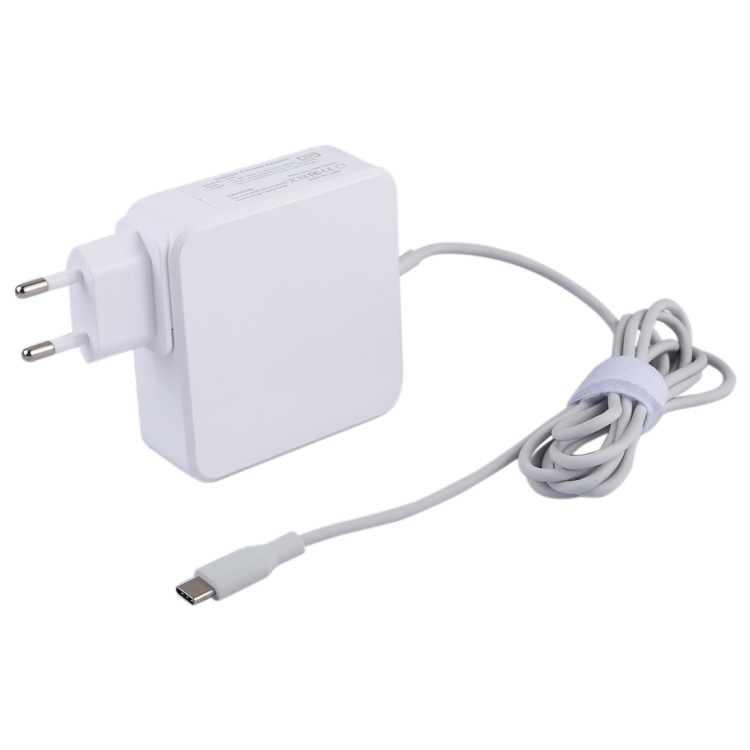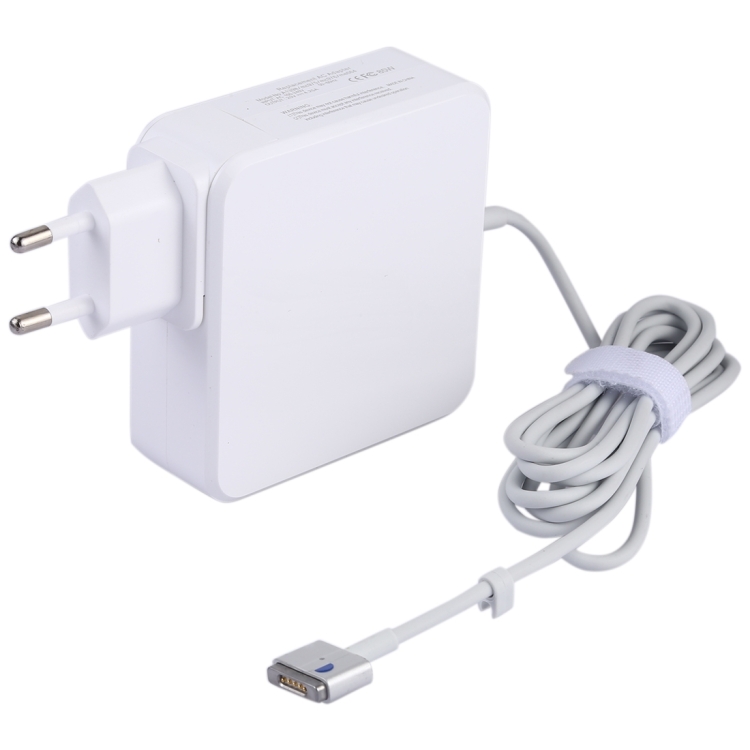
How to Clean and Maintain Your USB-C Ports and Cables

Why USB-C Maintenance Matters
USB-C ports and cables are designed for 10,000+ insertion cycles, but poor maintenance can reduce that lifespan dramatically. Dust, debris, moisture, and physical stress are the enemies of USB-C longevity. A few minutes of maintenance every few months can extend the life of your ports and cables by years.
At USBToUSB, we want our products to last. Here’s our complete guide to cleaning and maintaining USB-C ports and cables.
Understanding Why Ports Fail
USB-C port failures fall into three categories:
1. Debris Accumulation (60% of failures)
Pocket lint, dust, and debris compact inside the port every time you plug in. Over time, this debris prevents the connector from seating fully, causing intermittent connections or complete failure. This is the #1 cause of port failure in phones.
2. Physical Damage (25% of failures)
Lateral force on the connector bends the internal pins. Common causes: bumping a plugged-in cable, dropping the device while charging, or storing the device with the cable plugged in. A magnetic USB-C adapter can prevent this.
3. Moisture Corrosion (15% of failures)
Moisture from humidity, rain, or sweat causes corrosion on the gold-plated contacts. Corroded contacts have higher resistance, leading to slow charging or data transfer failures. Phones used in bathrooms or kitchens are particularly susceptible.
How to Clean USB-C Ports
What You Need
- Wooden toothpick (NOT metal — metal can short the pins)
- Compressed air can (with straw attachment)
- Isopropyl alcohol (90%+ concentration)
- Cotton swab (cut in half for better access)
- Bright light source (flashlight or phone light)
Step-by-Step Cleaning Process
- Power off the device: Always turn off the device before cleaning ports
- Shine light into the port: Inspect for visible debris, lint, or corrosion
- Compressed air: Use short bursts of compressed air to dislodge loose debris. Hold the can upright to prevent liquid propellant from entering the port
- Gentle toothpick cleaning: Gently scrape the inside walls of the port with a wooden toothpick. Do NOT insert the toothpick deeply — the pins are delicate and located at the bottom of the port
- Remove debris: Use the toothpick to lift compacted lint from the bottom of the port. You may be surprised by how much comes out
- Alcohol cleaning: Dip a cut cotton swab in isopropyl alcohol (just damp, not dripping). Gently wipe the inside of the port to remove oils and residue
- Dry completely: Wait at least 5 minutes for the alcohol to evaporate completely before plugging in any device
- Test connection: Plug in a cable and verify it seats firmly and charges properly
How Often to Clean
- Phones: Every 3-6 months (phones go in pockets where lint is common)
- Laptops: Every 6-12 months (less exposure to pocket lint)
- USB hubs: Every 12 months (dust accumulation only)
- Car USB ports: Every 3 months (cars have high dust levels)
How to Clean USB-C Cables
Cleaning the Connector
- Inspect the connector: Look for bent pins, corrosion, or debris
- Compressed air: Blow air around the connector to remove loose dust
- Alcohol wipe: Dampen a cotton swab with isopropyl alcohol and clean the metal contacts
- Dry: Wait for alcohol to evaporate before use
Cleaning the Cable Jacket
- Wipe with damp cloth: Use a slightly damp microfiber cloth to wipe the cable jacket
- Mild soap for stubborn stains: A drop of mild dish soap on a damp cloth removes most stains
- Dry completely: Wipe with a dry cloth and let air dry
- Avoid harsh chemicals: Don’t use bleach, acetone, or strong solvents — they can damage the cable jacket
Maintaining USB-C Port Health
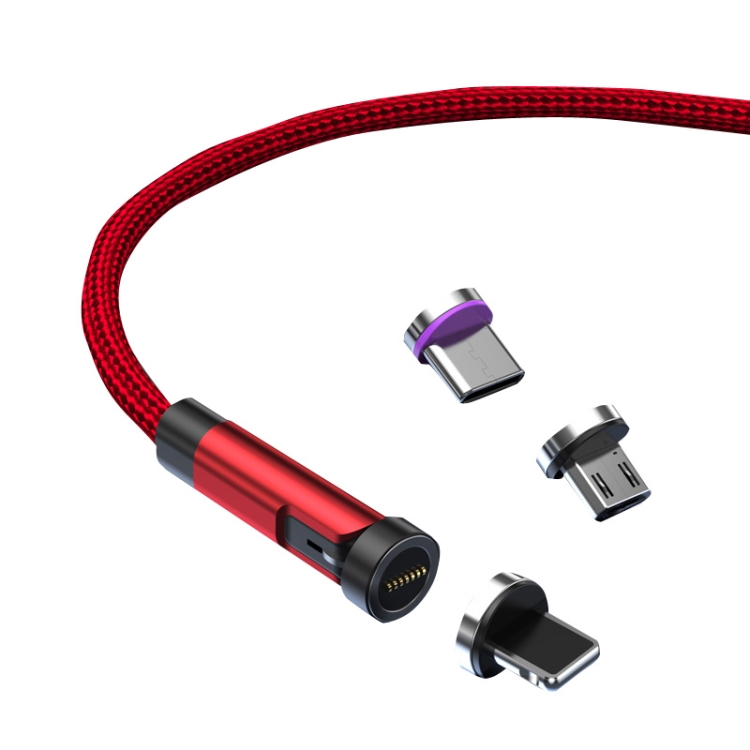
Use Magnetic Adapters
A magnetic USB-C adapter (like our 100W Magnetic Elbow Adapter) stays in the port and prevents debris entry. You only remove the magnetic cable, not the adapter. This reduces insertions and prevents debris from accumulating.
Avoid Stress on the Connector
- Don’t use the device while charging with a rigid cable: The cable acts as a lever, transferring force to the port
- Use right-angle adapters: Our USB 3.0 Right Angle Adapter redirects the cable parallel to the device, reducing stress
- Don’t store with cable plugged in: Pressure on the connector during storage bends pins
Keep Ports Covered When Not in Use
For devices that you carry in bags or pockets, consider using port covers. Some phone cases include port covers. For laptops, a simple piece of tape over the port (when not in use for extended periods) prevents dust entry.
Use Quality Cables
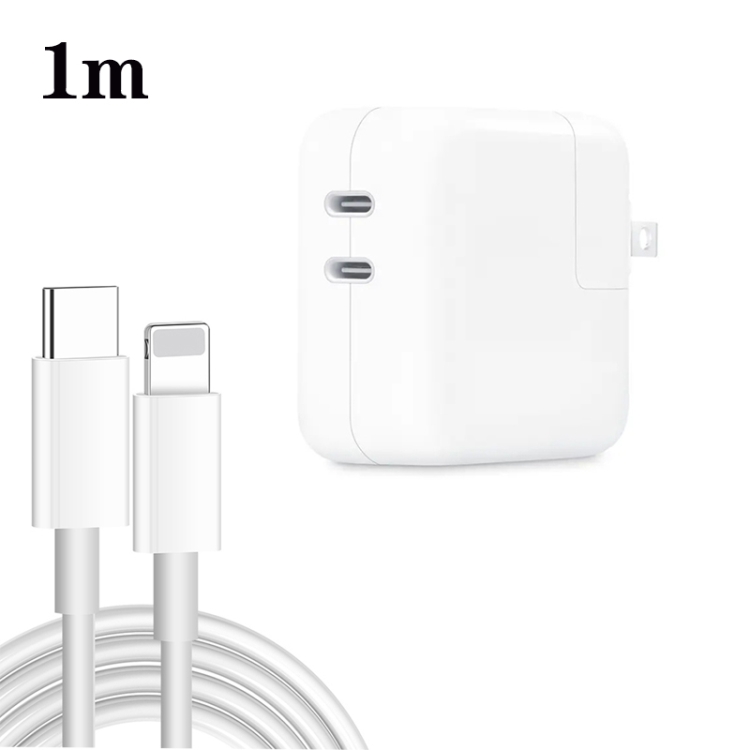
Quality cables with proper strain relief boots reduce force on the port. Cheap cables often have rigid connectors that fit too tightly, causing port wear. Our USB cables are designed with appropriate connector tolerances for smooth insertion and removal.
Signs Your Port Needs Cleaning
- Cable doesn’t click in: Debris prevents full insertion
- Intermittent charging: Connection drops when the cable is moved
- Slow charging: Debris increases resistance, reducing charging speed
- “Accessory not supported” errors: Debris prevents proper PD negotiation
- Cable feels loose: Debris prevents the spring contacts from gripping the connector
If cleaning doesn’t resolve these issues, the port may have physical damage and require professional repair.
Storage Tips for USB-C Cables
- Coil loosely: Coil cables with a diameter of at least 10cm (4 inches). Tight coils damage the internal wires
- Use velcro straps: Secure coiled cables with soft velcro straps — not rubber bands or zip ties
- Avoid sharp bends: Never bend a cable at a right angle, especially near the connector. The minimum bend radius is 5× the cable diameter
- Store in a dry place: Moisture causes corrosion on metal contacts
- Don’t wrap around chargers: Wrapping cables tightly around chargers stresses the cable at the connector joint
When to Replace Cables
Replace USB-C cables if you notice:
- Fraying or exposed wires near the connector
- Connector feels loose when plugged in
- Charging speed is significantly slower than with a new cable
- Intermittent data connections
- Visible corrosion on the connector
- Cable feels warm during charging (indicates internal resistance)
Quality replacement cables and chargers are available at USBToUSB.com.