Common USB Charging Problems and How to Fix Them

When USB Charging Goes Wrong
“My phone won’t charge.” “Charging is super slow.” “My laptop says ‘plugged in, not charging.’” USB charging problems are frustrating and common. The good news? Most have simple solutions that don’t require buying a new device.
At USBToUSB, we’ve helped thousands of customers solve charging issues. Here’s our complete troubleshooting guide for the most common USB charging problems.
Problem 1: Phone Won’t Charge at All
Likely Causes and Solutions
Cable failure: The #1 cause. Try a different cable. USB cables fail internally where the cable meets the connector — a common failure point that’s invisible from the outside.
Charger failure: Try a different charger. Even quality chargers can fail after years of use. Test with a known-good charger.
Dirty charging port: Lint and dust accumulate in the charging port over time. Clean with a wooden toothpick (not metal!) or compressed air. Be gentle — the pins inside the port are delicate.
Wall outlet issue: Test the outlet with another device. Some outlets have loose connections or are on a switched circuit that’s turned off.
Problem 2: Phone Charges Very Slowly
Likely Causes and Solutions
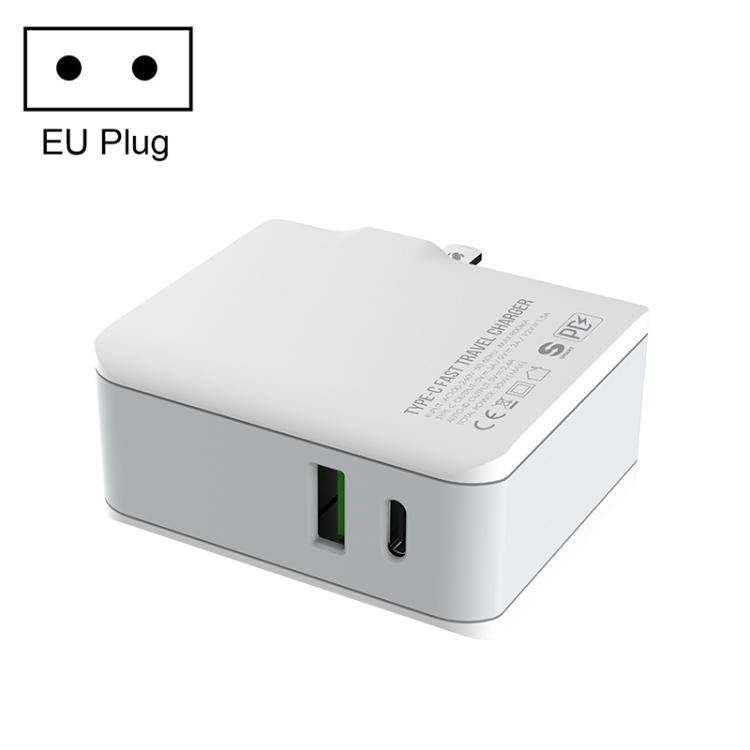
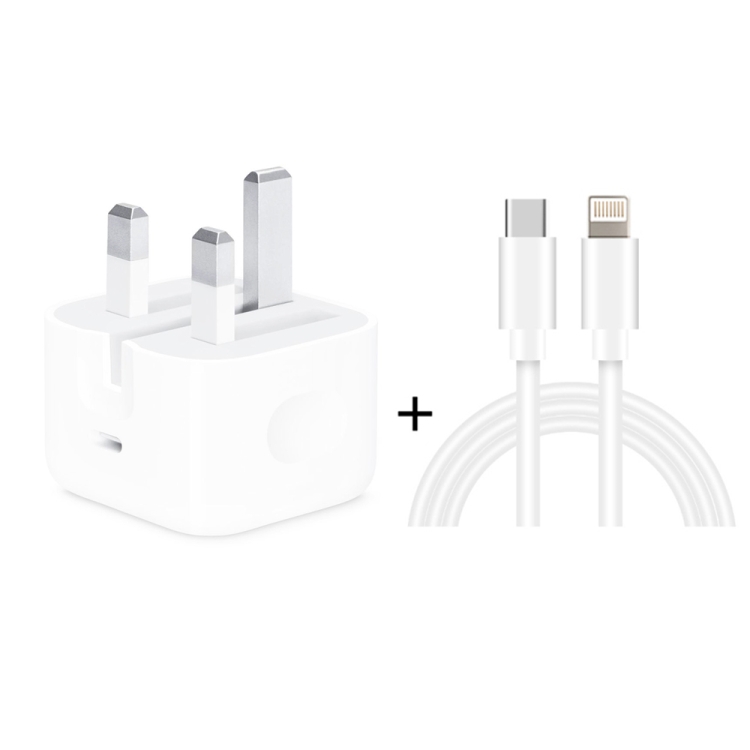
Wrong charger: A 5W charger takes 3+ hours to charge a modern phone. Use a charger with at least 18W for fast charging. The A3365 PD40W provides 15-20W fast charging.
Wrong cable: Thin wires (high AWG) cause voltage drop, limiting charging speed. Use a cable with 22AWG or thicker power wires. See our USB Cable AWG guide for details.
No PPS support: Samsung phones need a PPS-enabled charger for Super Fast Charging. Without PPS, charging drops to 15W. Use the TE-PD65 GaN (QC4.0 with PPS).
Phone in case causing heat: Phones throttle charging speed when they get warm. Remove thick cases during charging to improve heat dissipation.
Background apps: Heavy apps running in the background consume power faster than the charger can supply. Close background apps or power off the phone during charging.
Problem 3: “Accessory Not Supported” or “Not Charging” Message
Likely Causes and Solutions
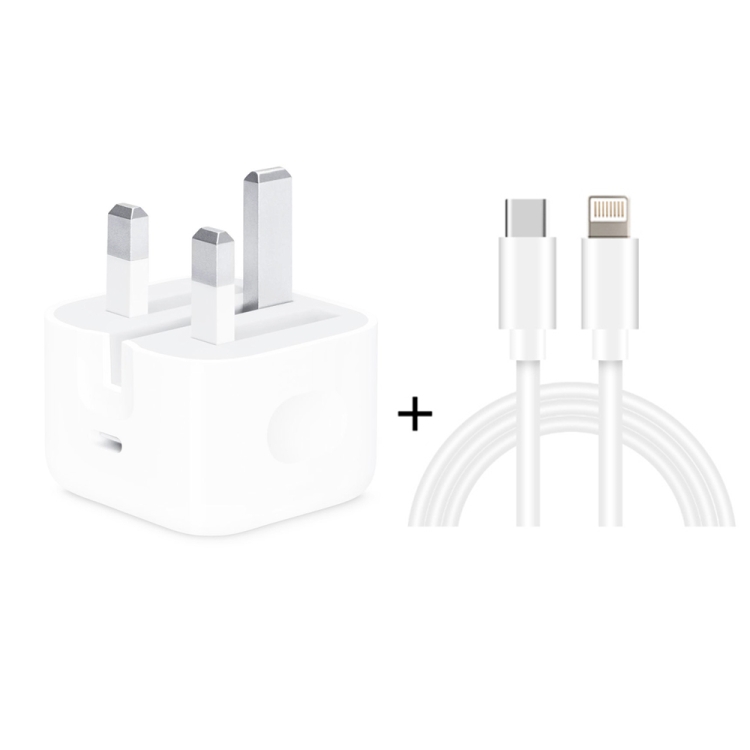
Non-certified cable: iPhones display “This accessory is not supported” when using non-MFi-certified Lightning cables. Use MFi-certified cables or switch to USB-C (iPhone 15+).
Moisture in port: Modern phones detect moisture and disable charging for safety. Dry the port completely before charging. Use a fan or wait 2 hours.
Power negotiation failure: The PD negotiation between charger and phone failed. Try unplugging and reconnecting. If the problem persists, the charger may not support your phone’s required PD profile.
Problem 4: Laptop Says “Plugged In, Not Charging”
Likely Causes and Solutions
Insufficient charger wattage: A 40W charger can’t charge a MacBook Pro 16″ while it’s in use. The laptop draws more power than the charger provides. Use a 65W+ charger.
Battery management software: Some laptops have battery health features that prevent charging above 80% to extend battery life. Check your laptop’s battery settings.
USB-C port not supporting PD: Not all USB-C ports support charging. Some are data-only ports. Check your laptop’s documentation to identify which ports support charging.
Wrong cable: A 3A cable limits charging to 60W. For laptops requiring 100W, use a 5A E-Marker cable.
Overheating: Laptops stop charging when the battery temperature exceeds safe limits. Let the laptop cool down before charging.
Problem 5: Charger Gets Very Hot
Likely Causes and Solutions
Normal operation: GaN chargers run at 38-45°C — warm but not dangerously hot. This is normal and safe.
Overloaded charger: Drawing more power than the charger’s rated capacity causes excessive heat. Use a charger with sufficient wattage for your device.
Poor ventilation: Chargers plugged into tight outlets or covered by furniture can’t dissipate heat. Ensure airflow around the charger.
Charger failure: If the charger is too hot to touch (above 55°C), unplug it immediately. This indicates internal failure — replace the charger.
Problem 6: Device Charges Then Disconnects Repeatedly
Likely Causes and Solutions
Loose connection: The cable connector doesn’t fit snugly in the port. This can be caused by port wear, cable wear, or debris. Try a different cable.
Insufficient power: The charger can’t sustain the power delivery. Try a higher-wattage charger.
Bad cable: Internal wire damage causes intermittent connections. Replace the cable.
USB hub power sharing: If charging through a hub, the hub may not provide enough power. Connect the charger directly to the device instead.
Problem 7: Fast Charging Works Sometimes But Not Always
Likely Causes and Solutions
Cable direction: Some USB-C cables are directional for fast charging. Try flipping the cable end.
Phone temperature: Phones disable fast charging when the battery is warm. Let the phone cool before charging.
Case interfering with PD: Some phone cases prevent proper USB-C connector insertion. Remove the case and try again.
Multiple devices on charger: Multi-port chargers share power among ports. Disconnect other devices for maximum speed.
Problem 8: USB Hub Devices Not Recognized
Likely Causes and Solutions
Insufficient power: Bus-powered hubs can’t power all ports simultaneously. Remove high-power devices or use a powered hub.
USB 2.0 cable: A USB 2.0 cable between computer and USB 3.0 hub limits all devices to USB 2.0. Use a USB 3.0 cable.
Hub controller failure: If the hub’s controller chip fails, devices won’t be recognized. Test devices with a direct connection.
Driver issues: On Windows, check Device Manager for USB controller errors. Update USB drivers from the manufacturer’s website.
Diagnostic Checklist
When troubleshooting USB charging, always test in this order:
- Try a different cable: 70% of charging problems are cable-related
- Try a different charger: 20% are charger-related
- Clean the charging port: 5% are port debris
- Try a different wall outlet: 3% are outlet problems
- Restart the device: 2% are software glitches
By following this checklist, you’ll solve 99% of USB charging problems without professional help.
When to Replace Your Charger
Replace your charger if:
- It’s more than 5 years old (components degrade over time)
- It gets too hot to touch (above 55°C)
- It makes buzzing or clicking sounds
- It smells like burning plastic
- The connector is loose or wobbly
- Devices charge significantly slower than before
Quality replacement chargers are available at USBToUSB.com, including the A3365 PD40W for phones and tablets, and the TE-PD65 GaN for laptops and fast charging.